
July 01, 2026 • General • By Sayad Md Bayezid Hosan
MODULE 9: Creating a WordPress Website — The Complete A to Z Mega Guide for Beginners
A complete, practical A to Z guide to building a WordPress website for beginners — what WordPress actually is and why it matters for digital marketers, the real difference between WordPress.com and WordPress.org, how to register a domain and choose hosting, how to install and set up WordPress correctly, how to pick themes and plugins without wrecking your site, how to actually build the pages and structure of a real website, and how to use WordPress for blogging the right way.
Welcome to Module 9: Creating a WordPress Website
Every platform we've covered so far in this course — Facebook, Instagram, X, LinkedIn, Pinterest — is a place you rent. You build an audience there, you follow that platform's rules, and if the platform changes its algorithm, bans your account, or simply falls out of fashion, everything you built is at risk.
A website is different. A website is the one piece of digital real estate you actually own.
This module is where we stop renting attention on other people's platforms and start building your own foundation. WordPress is, by a wide margin, the most common way that beginners, small businesses, and even large companies build that foundation — and understanding it properly is one of the most practical skills you can carry out of this entire course.
By the end of this module, you'll understand what WordPress actually is, why every earlier module in this course ultimately points traffic back toward a website like the one you'll build here, how to choose between WordPress.com and WordPress.org without getting confused by marketing language, how domains and hosting actually work, how to install and configure WordPress the right way, how to choose themes and plugins without turning your site into a slow, cluttered mess, and how to actually put a real website and blog together from scratch.
If you haven't already gone through the earlier modules in this course, I'd recommend starting there, since each module builds on the concepts that came before:
- Introduction to Online Digital Marketing: A Beginner's Guide
- Module 3: Social Media Marketing (SMM) — Advertising Concepts and Platform Selection
- Module 4: Meta (Facebook) Marketing — The Complete A to Z Mega Guide
- Module 5: Instagram Marketing — The Complete A to Z Mega Guide
- Module 6: X (Formerly Twitter) Marketing — The Complete A to Z Mega Guide
- Module 7: LinkedIn Marketing — The Complete A to Z Mega Guide
- Module 8: Pinterest Marketing — The Complete A to Z Mega Guide
- Algorithm Updates and Analysis — The Complete A to Z Mega Guide for Beginners
- Module 10: Search Engine Optimization (SEO) — The Complete A to Z Mega Guide
- Content Marketing — The Complete A to Z Mega Guide
- TikTok Marketing — The Complete A to Z Mega Guide for Beginners
- Off-Page Optimization — The Complete A to Z Mega Guide for Beginners
- How to Optimize Your Website for Google AdSense Approval in 2026: The Mega Guide
Why I'm Writing This Guide the Way I Am
Most WordPress tutorials fall into one of two traps. Either they're written for developers and drown a beginner in terminology on page one, or they're so simplified that you finish the tutorial able to click a few buttons but with no real understanding of what you just did — which means the moment something breaks, you're stuck.
This guide takes a third path. It explains what's actually happening at each step — why you're registering a domain separately from hosting, why WordPress.org gives you more control than WordPress.com, why some plugins slow your site down and others don't — so that by the end, you're not just able to follow steps, you actually understand the system well enough to fix things, extend things, and make good decisions as your site grows.
Everything here is written the way a practitioner explains it to a beginner they actually care about helping — with the reasoning behind each recommendation, not just a checklist to click through blindly.
1. What Is WordPress?
The Simple Definition
WordPress is a content management system (CMS) — software that lets you create, organize, and publish content on a website without needing to write code from scratch. You work inside a visual dashboard: you write posts and pages, upload images, arrange menus, and adjust settings, and WordPress handles the underlying technical work of turning all of that into a functioning website that visitors can view in their browser.
Before content management systems existed, building a website meant writing raw HTML and CSS by hand for every single page. WordPress removed that barrier. It gave non-programmers the ability to build and maintain real websites — which is precisely why it grew into the dominant platform it is today.
How Big Is WordPress, Really?
WordPress powers a substantial share of all websites on the internet — commonly cited figures place it at somewhere around 40% of the entire web, spanning everything from personal blogs and small business sites to major media outlets and large e-commerce stores. It is, by a significant margin, the most widely used website platform in the world.
That scale matters practically, not just as a statistic. It means there is an enormous ecosystem built around WordPress: thousands of free and paid themes, tens of thousands of plugins that add functionality, an enormous global community of developers and tutorial creators, and virtually every hosting company on earth optimized to support it. When you get stuck on something in WordPress, the odds that someone else has already solved that exact problem and written about it are extremely high.
What WordPress Is Not
It's worth clearing up a common beginner confusion early. WordPress is not a website builder in the drag-and-drop sense that tools like Wix or Squarespace are (though modern WordPress, through its block editor, has moved much closer to that experience). It's also not a hosting company — WordPress itself doesn't put your website on the internet; that's a separate piece of the puzzle we'll cover in Section 4.
WordPress is, fundamentally, the software layer that manages your content and structure. What houses that software, and what address people type to find it, are two separate decisions you make around it.
2. The Role of Learning WordPress in Digital Marketing
It's fair to ask why a digital marketing course spends an entire module on something that looks like a technical, developer-adjacent skill. The answer is that WordPress sits at the center of almost everything the earlier modules in this course were building toward.
Your Website Is Where Traffic Actually Converts
Every platform covered so far — Facebook, Instagram, X, LinkedIn, Pinterest — exists to get attention and, ultimately, to send interested people somewhere. That "somewhere" is almost always a website. A Facebook ad drives someone to a landing page. An Instagram bio link drives someone to a shop page. A Pinterest Pin drives someone to a blog post or product page. Social platforms are the funnel; your website is where the actual business outcome — a purchase, a sign-up, a form submission — happens.
A marketer who understands WordPress can build, edit, and troubleshoot that final and most important step of the funnel without waiting on a developer for every small change. That independence is genuinely valuable, both as an employee and as a freelancer or business owner.
It Connects Directly to SEO
Search engine optimization, which touches nearly every module in this course, lives largely inside your website's structure — page titles, headings, URL structure, page speed, internal linking, and content organization. WordPress gives you direct control over all of these things, and understanding how the platform works is what allows you to actually apply SEO principles rather than just knowing them in theory.
It's a Genuinely Marketable Skill
From a career and freelancing standpoint, basic WordPress competency is one of the most consistently in-demand skills a digital marketer can have. Businesses regularly need someone who can update a website, add a blog post, install a plugin, or make small structural changes without hiring a full-time developer for every task. Marketers who can do this themselves are more valuable, more independent, and often better paid than those who can't.
It Gives You a Real Testing Ground
Every concept from the earlier modules in this course — landing pages, lead capture forms, Pinterest-friendly blog content, SEO-optimized product pages — needs somewhere to actually live so you can practice and test it. Building a WordPress site gives you that testing ground, which is exactly why this module comes where it does in the course.
3. WordPress.com vs WordPress.org
This is, without exaggeration, the single most confusing point for almost every WordPress beginner — and the confusion is understandable, because the two options share a name but work in fundamentally different ways.
WordPress.org — The Software Itself
WordPress.org is where you download the actual, free, open-source WordPress software. When people say "I built my site in WordPress" in a professional or business context, they almost always mean this version.
With WordPress.org, you download the software and install it on hosting that you choose and pay for separately (covered in Section 4). This gives you full ownership and control: you can install any theme, any plugin, run any kind of business including a full online store, monetize however you like, and modify the underlying code if you know how. Nothing is off-limits.
The trade-off is responsibility. You are in charge of your own hosting, your own backups, your own security updates, and your own technical maintenance — though, as we'll see, good hosting providers handle much of this for you automatically.
WordPress.com — The Hosted Service
WordPress.com is a commercial hosting service, built by Automattic (the company most closely associated with WordPress), that runs the WordPress software for you on their own servers. You sign up, pick a plan, and your site is live — no separate hosting purchase required.
WordPress.com offers several plans, including a free tier, but the free and lower-priced tiers come with real restrictions: limited themes, restricted or no plugin access, WordPress.com branding on your site and URL (like yoursite.wordpress.com), and in some cases restrictions on how you can monetize the site. Higher-priced WordPress.com plans progressively unlock more of these limitations, including custom domains, more plugins, and e-commerce features — but at that point, you're often paying nearly as much as self-hosted WordPress.org while still working within a more restricted system.
Which One Should You Actually Choose?
For almost every business, freelancer, or serious blogger, WordPress.org is the right choice. It costs a little more upfront (a domain plus hosting, both covered next), takes slightly more initial setup, and requires you to make a couple more decisions early on — but it gives you full ownership, full flexibility, and no ceiling on what your site can eventually become.
WordPress.com's free or low tiers can make sense for a genuinely casual personal blog with no business ambitions, where you want zero technical setup and don't mind the platform's branding and restrictions. But the moment you're building anything connected to a business, a brand, or a long-term marketing strategy — which is the entire premise of this course — WordPress.org is the standard, professional choice, and it's the version this guide focuses on from here forward.
4. Domain Registration and Hosting
Once you've decided on self-hosted WordPress.org, there are two separate purchases you need to make before you can install anything. Beginners often assume these are the same thing. They are not, and understanding the difference will save you real confusion.
What a Domain Actually Is
Your domain name is your website's address — the thing people type into a browser, like yourbusiness.com. A domain is purchased through a domain registrar (companies like Namecheap, GoDaddy, or Google Domains) for a yearly fee, and it is entirely separate from where your website's actual files and content live.
Choosing a good domain matters more than beginners often assume. Keep it short, easy to spell out loud, easy to remember, and as closely tied to your business name or core topic as possible. Favor .com when it's available, since it remains the most instantly trusted extension for most audiences, though industry-specific extensions (like .io for tech or .co for many startups) have become widely accepted alternatives when your ideal .com is taken.
What Hosting Actually Is
Web hosting is the physical (or virtual) storage space where your website's actual files, database, images, and content live. When someone types your domain into their browser, hosting is what actually serves your website's files back to them.
Think of it this way: your domain is your street address, and your hosting is the actual building at that address. You need both, and they're typically purchased from different companies, though many hosting providers will also sell you a domain as a convenience.
Choosing Hosting for WordPress
Not all hosting is created equal, and hosting quality has a direct, measurable effect on your site's loading speed, uptime, and security — all of which matter for both user experience and SEO. A few practical categories to know:
Shared hosting is the cheapest and most common starting point for beginners. Your site shares server resources with many other websites. It's inexpensive and perfectly adequate for a new blog or small business site, though performance can dip if a neighboring site on the same server experiences a traffic spike.
Managed WordPress hosting is a step up, offered by providers who specialize specifically in WordPress and handle updates, backups, security, and performance optimization automatically. It costs more than basic shared hosting but removes a meaningful amount of ongoing technical maintenance.
VPS and dedicated hosting give you a larger or entirely private slice of server resources, and are typically only necessary once a site has grown to serious traffic volumes that shared hosting can no longer comfortably handle.
For a beginner following this course, reputable shared or managed WordPress hosting is the right starting point. Look for a provider with strong uptime guarantees, responsive customer support, free SSL certificates (covered next), and one-click WordPress installation, which nearly all major hosts now offer.
Don't Skip SSL
Every website today should have an SSL certificate, which is what makes your site load as https:// rather than http:// and shows the padlock icon in a visitor's browser. SSL encrypts the connection between your visitor and your server, which matters for trust, for any site collecting personal information or payments, and for SEO, since search engines factor site security into rankings. Most reputable hosts now include a free SSL certificate automatically with any plan — confirm this before purchasing.
A Mid-Guide Reality Check — What I Actually Want You to Walk Away Understanding
Halfway through a guide like this, it's worth naming the mistake that trips up more beginners than any single technical step.
The mistake is treating the domain-and-hosting decision as a minor formality to rush past so you can get to the "fun part" — themes and design. It isn't a formality. A cheap, unreliable host will quietly cost you traffic, SEO ranking, and visitor trust for as long as your site exists on it, in ways that are hard to notice until you compare your site's speed against a competitor's. Spending a little extra care choosing solid hosting up front saves you a painful, disruptive migration later once your site has real traffic and content built up on it.
The other thing worth naming clearly: WordPress is forgiving of experimentation. You can install a theme, decide you don't like it, and switch. You can try a plugin and remove it if it doesn't help. The one thing that isn't easily reversible is your domain and hosting foundation, which is exactly why this section deserves more attention than its length in a typical tutorial usually suggests.
The rest of this guide assumes that foundation is solid, and walks through everything you build on top of it.
5. WordPress Installation & Setup
With a domain and hosting in place, installing WordPress itself is, for most beginners today, the easiest part of the entire process.
One-Click Installation
The overwhelming majority of hosting providers offer a one-click WordPress installer inside their account dashboard. You select WordPress from a list of available applications, connect it to your domain, set an admin username and password, and the host automatically installs the software, sets up its database, and makes your site live within a few minutes. For nearly every beginner, this is the recommended path — there is rarely a good reason to install WordPress manually when a reliable one-click option exists.
The Manual Installation Path (For Understanding, Not Necessity)
It's worth briefly understanding what's happening behind that one click, even if you never do it manually. WordPress requires a database (almost always MySQL) to store your content, a server environment capable of running PHP (the programming language WordPress is built in), and the WordPress software files themselves uploaded to your hosting account. Manual installation involves creating that database, uploading the WordPress files via FTP, and running a short setup script that connects the two. Knowing this exists helps demystify what your hosting provider's one-click installer is actually doing for you.
The Initial Setup Checklist
Once WordPress is installed and you can log into your dashboard (usually at yourdomain.com/wp-admin), a handful of settings are worth configuring immediately, before you build anything else:
Site title and tagline. Set these under Settings → General. This is your site's basic identity and appears in browser tabs and, often, in search engine results.
Permalink structure. Under Settings → Permalinks, choose "Post name" as your URL structure. This produces clean, readable URLs like yourdomain.com/your-post-title rather than messy default URLs full of numbers and question marks — a small setting with a real, lasting SEO impact.
Timezone and general settings. Under Settings → General, set your correct timezone so that scheduled posts and timestamps display accurately.
Remove default content. WordPress installs with a sample "Hello World" post and a sample page. Delete these before publishing anything real, so early visitors and search engines don't index placeholder content.
Create your core user account carefully. Use a strong, unique password for your admin account, and avoid the default username "admin," which is one of the first things automated attacks attempt. This single habit meaningfully reduces your exposure to basic security threats.
6. WordPress Themes & Plugins
Once your WordPress installation is live and configured, themes and plugins are how you turn a bare, functional installation into an actual, distinctive website.
Understanding Themes
A theme controls your website's visual design and layout — colors, fonts, page structure, and how content is displayed. WordPress ships with a basic default theme, but the ecosystem includes thousands of free and paid alternatives, both in the official WordPress theme directory and from third-party marketplaces.
When choosing a theme, prioritize a small set of practical criteria over pure visual appeal: is it actively maintained and regularly updated (an outdated theme is a real security risk), is it genuinely fast-loading (a beautiful theme that loads slowly will hurt both user experience and SEO), is it responsive (does it display well on mobile, where most traffic now originates), and is it well-reviewed with reliable support if something goes wrong.
Block-based themes and the WordPress block editor (sometimes referred to by its project name, Gutenberg) have become the modern standard. They let you build and rearrange page layouts visually, section by section, using a system of "blocks" for text, images, buttons, and more — without needing to touch code for most everyday design changes.
A practical rule for beginners: start with a well-regarded, lightweight, actively updated free theme rather than the most visually elaborate paid option you can find. You can almost always add specific visual elements later with page builder plugins or block patterns; you cannot easily undo the slow, bloated foundation that an overly complex theme can leave behind.
Understanding Plugins
A plugin is a piece of add-on software that extends what WordPress can do — adding functionality that isn't part of the core software. There are over fifty thousand plugins in the official WordPress repository alone, covering essentially every conceivable feature: contact forms, SEO tools, security hardening, page builders, e-commerce, image optimization, backups, and far more.
A small set of plugin categories are worth understanding as near-essential for most business websites:
SEO plugins (Yoast SEO and Rank Math are the two most widely used) help you set page titles, meta descriptions, and structured data, and give you built-in guidance on optimizing individual pages and posts as you write them.
Security plugins add firewall protection, login attempt limiting, and malware scanning — an important layer given WordPress's popularity also makes it a common target for automated attacks.
Backup plugins automatically create regular backups of your site's content and database, so that if something goes wrong — a bad update, a hack, an accidental deletion — you can restore your site rather than losing everything.
Caching and performance plugins speed up how quickly your pages load for visitors, which matters both for user experience and for search rankings.
Page builder plugins (such as Elementor) give you more advanced, flexible visual design control beyond what the default block editor offers, which many beginners eventually adopt as their design ambitions grow.
The Discipline of Not Over-Installing
The single most common mistake beginners make with plugins is installing too many of them, particularly ones that overlap in function or that get installed once, tested, and then forgotten while still running in the background. Every active plugin adds some amount of loading time and a small amount of security surface area. A reasonable practice is to periodically review your installed plugins, deactivate and delete anything you're not actively using, and favor a smaller number of well-maintained plugins over a large collection of untested ones.
7. Creating a WordPress Website
With your theme and core plugins in place, it's time to actually build the website itself — the pages, structure, and navigation that make it function as a real, usable site rather than a loose collection of settings.
Pages vs. Posts — A Distinction That Confuses Every Beginner
WordPress has two fundamentally different content types, and understanding the difference early will save you real confusion later.
Pages are for static, timeless content that doesn't change often and isn't part of a chronological stream — things like your Home page, About page, Services page, or Contact page. Pages can be organized into a hierarchy (a parent page with sub-pages beneath it) and are what typically make up your main navigation menu.
Posts are for your blog — chronological, dated content meant to be published in an ongoing series over time, organized by categories and tags rather than a fixed hierarchy. Every blog article, news update, or recipe (to borrow from the Pinterest module) is a Post, not a Page.
A simple rule: if the content is part of an ongoing, dated series meant to be published regularly, it's a Post. If it's a standalone, evergreen piece of your site's core structure, it's a Page.
The Core Pages Every Business Website Needs
While every business is different, a handful of pages form the backbone of nearly every functional business website:
- Home — your site's front door, summarizing who you are and directing visitors to your most important content or offers.
- About — who you are, what your business does, and why a visitor should trust you.
- Services or Products — a clear description of what you offer, ideally with individual pages for major services or product categories.
- Blog — the archive page that automatically displays your Posts, central to the content strategies covered throughout this course.
- Contact — a straightforward way for visitors to reach you, typically including a contact form (built with a plugin) and your business's key details.
Building Your Navigation Menu
Under Appearance → Menus, you build the navigation bar that appears at the top of your site. Keep this intentionally simple — a cluttered menu with too many items overwhelms visitors and dilutes the importance of your most valuable pages. Most effective small business sites use somewhere between four and seven main menu items, prioritizing the pages that matter most to a new visitor's decision-making.
Using the Block Editor to Build Pages
Inside each Page or Post, the WordPress block editor lets you build your layout visually using individual blocks — paragraphs, headings, images, buttons, columns, galleries, embedded video, and many more. You add blocks in sequence to build out a page section by section, which means you don't need to know any code to create a well-structured, visually organized page.
A few practical habits make a real difference here: use proper heading structure (one H1 per page, generally reserved for the page title, with H2 and H3 used to organize sections beneath it — this matters both for readability and SEO), compress images before uploading them so they don't slow down your page load times, and preview your page on both desktop and mobile views before publishing, since the two can look meaningfully different.
Setting Your Homepage
Under Settings → Reading, you choose whether your homepage displays your most recent blog posts or a specific static page you've built. For most business websites, a custom static homepage designed to introduce your business and direct visitors toward key actions is the right choice, with your blog living at its own dedicated page reachable through the navigation menu.
8. Using WordPress for Blogging
Blogging is where WordPress connects directly back to nearly everything covered earlier in this course. The content strategies from the Pinterest module, the SEO principles referenced throughout, and the traffic-driving goals of every social platform module all rely on having somewhere substantial to send that traffic — and for most businesses, that destination is the blog.
Setting Up Categories and Tags
Categories are the broad topic groupings for your blog — think of them as the main sections of a magazine. A food blog might use categories like "Breakfast," "Dinner," and "Desserts." Choose a modest, well-thought-out set of categories early, since restructuring them later after you've published dozens of posts is more work than getting them right from the start.
Tags are more specific, granular labels that can apply across categories — a single post about a "30-minute pasta dinner" might sit in the "Dinner" category but carry tags like "quick meals," "pasta," and "weeknight cooking." Tags help both readers and search engines understand more granular connections between your content.
Writing Posts That Actually Perform
A blog post's structure matters as much as its content quality when it comes to actually being found and read. A few practical, consistently effective habits:
Write a genuinely descriptive, keyword-relevant title — the kind of phrase someone would actually type into a search engine, not a clever pun that obscures what the post is about.
Use your featured image thoughtfully. This is the image that represents your post in previews, social shares, and — as covered extensively in the Pinterest module — Pinterest Pins when Rich Pins are enabled. A clear, high-quality, relevant featured image genuinely affects click-through rates wherever the post is shared.
Structure with headings, not walls of text. Break your post into clearly headed sections using H2 and H3 blocks. This helps readers scan for what they need and helps search engines understand your content's structure.
Write a strong opening paragraph. Readers and search engines both form an impression within the first few sentences. State clearly and directly what the post will help the reader accomplish.
Link internally to your own related content. Whenever a post naturally connects to another page or post on your site, link to it. This keeps visitors exploring your site longer and helps search engines understand how your content connects together — the same principle behind the "What's Next" sections you've seen at the end of every module in this course.
Publishing Consistency Matters More Than Perfection
Just as the Pinterest module noted that consistent publishing outperforms sporadic bursts of activity, the same principle holds true for blogging. A steady rhythm of well-considered posts — even just one or two genuinely useful posts per week — published consistently over months will outperform an intense initial burst of content followed by long silence. Search engines and readers alike reward a site that shows ongoing signs of life.
Connecting Your Blog to the Rest of Your Marketing
Once your blog is producing real content, it becomes the natural destination for the traffic-driving work covered in every earlier module: a blog post becomes the landing page linked from a Pinterest Pin, the subject of a LinkedIn article, the source material for an Instagram carousel, or the destination for a Facebook ad. Your WordPress blog isn't a separate project from everything else in this course — it's the hub that everything else in this course ultimately points back to.
Visual Summary
Below is an original infographic built specifically for this guide, mapping out the WordPress website-building system from domain and hosting through installation, themes and plugins, page structure, and blogging.
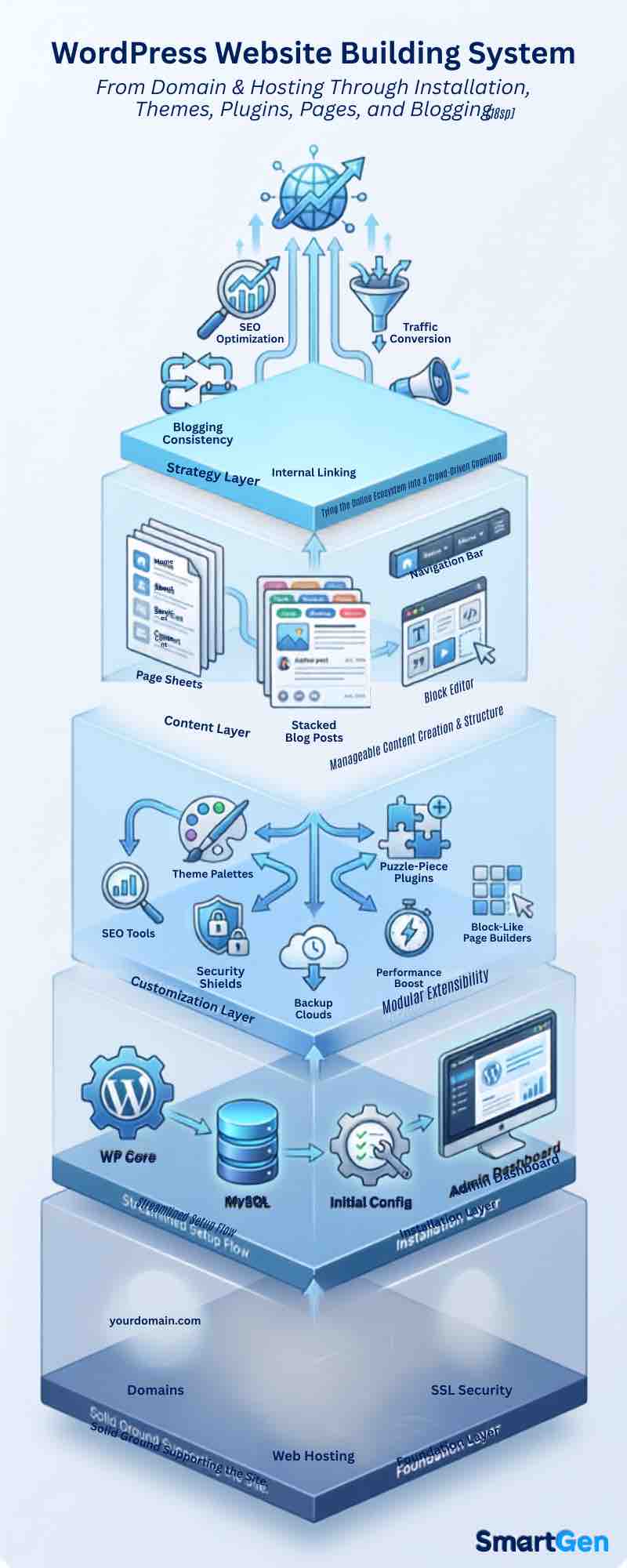
Module 9 Mega Guide Summary
In this module, we covered what WordPress actually is (a content management system, not a hosting company or a simple drag-and-drop builder), why learning it matters specifically for digital marketers (it's where traffic actually converts, it connects directly to SEO, and it's a genuinely marketable skill), the real difference between WordPress.com and WordPress.org and why the self-hosted .org version is the right choice for most businesses, how domain registration and hosting work as two separate purchases that together form your site's foundation, how to install and configure WordPress correctly from day one, how to choose themes and plugins without bloating or slowing down your site, how to structure a real website using Pages, navigation menus, and the block editor, and how to actually run a blog on WordPress that supports everything else you're building in this course.
Practice exercise: Register a domain name (or use a free testing domain from your host if you're not ready to commit) and set up basic shared or managed WordPress hosting. Install WordPress using your host's one-click installer, configure your permalinks to "Post name," and delete the default sample content. Choose one lightweight, well-reviewed free theme and install one SEO plugin. Then build three pages — Home, About, and Contact — and publish your first blog post, applying the heading structure and featured image practices from Section 8.
Frequently Asked Questions
Do I need to know how to code to use WordPress?
No. The overwhelming majority of what a business website needs — pages, blog posts, navigation, contact forms, basic design — can be accomplished entirely through WordPress's visual dashboard and block editor. Coding knowledge becomes useful only if you want highly custom functionality beyond what themes and plugins already offer.
How much does it actually cost to build a WordPress website?
A domain typically costs a modest yearly fee, and basic shared hosting is generally an affordable monthly cost, which together form the minimum ongoing expense. WordPress itself, along with the majority of essential plugins and many quality themes, is free. Costs rise if you choose premium themes, premium plugin features, or managed hosting, but a fully functional, professional starting site can be built on a modest budget.
Can I switch hosting providers later if I choose the wrong one?
Yes, and it's a common step as sites grow, though it does take some technical effort (migrating your files and database) or, more simply, purchasing a migration service that many hosts now offer for free when you switch to them. It's a solvable problem, but choosing carefully upfront still saves real time and disruption.
Is WordPress secure?
WordPress's core software is actively maintained and generally secure, but its popularity also makes it a frequent target for automated attacks, and most real security issues come from outdated themes, outdated plugins, or weak passwords rather than the core software itself. Keeping everything updated, using a security plugin, and following the account practices covered in Section 5 addresses the overwhelming majority of real-world risk.
How is this different from just using Wix or Squarespace?
Wix and Squarespace are simpler out of the box but far more restrictive — you're locked into their ecosystem, their pricing, and their limitations on functionality and design. Self-hosted WordPress takes a bit more initial setup but gives you full ownership of your site, unrestricted access to themes and plugins, and no ceiling on what your site can eventually grow into, which is why it remains the standard choice for serious, long-term business websites.
How long does it actually take to get a basic WordPress site live?
With hosting and a domain already in hand, a basic, functional WordPress site — home page, about page, contact page, and a first blog post — can realistically be built in a single focused day by a beginner following the steps in this module. Refining the design, expanding the content, and optimizing everything is an ongoing process well beyond that first day.
What's Next?
In the next module, we'll continue building your platform-specific and technical marketing skills. Take a moment to revisit the earlier lessons in this course if you need a refresher, since each module builds on what came before it:
- Introduction to Online Digital Marketing: A Beginner's Guide
- Module 3: Social Media Marketing (SMM) — Advertising Concepts and Platform Selection
- Module 4: Meta (Facebook) Marketing — The Complete A to Z Mega Guide
- Module 5: Instagram Marketing — The Complete A to Z Mega Guide
- Module 6: X (Formerly Twitter) Marketing — The Complete A to Z Mega Guide
- Module 7: LinkedIn Marketing — The Complete A to Z Mega Guide
- Module 8: Pinterest Marketing — The Complete A to Z Mega Guide
- Algorithm Updates and Analysis — The Complete A to Z Mega Guide for Beginners
- Module 10: Search Engine Optimization (SEO) — The Complete A to Z Mega Guide
- Content Marketing — The Complete A to Z Mega Guide
- TikTok Marketing — The Complete A to Z Mega Guide for Beginners
- Off-Page Optimization — The Complete A to Z Mega Guide for Beginners
- How to Optimize Your Website for Google AdSense Approval in 2026: The Mega Guide
— This article was written by Sayad Md Bayezid Hosan for the SmartGen blog.

Sayad Md Bayezid Hosan
Full-stack Web Developer, Digital Marketer, and Web Designer with 5+ years of experience delivering innovative digital solutions. Specializing in web development, AI integration, strategic digital marketing, and tech entrepreneurship. As a leading Tech Provider, I help audiences navigate digital platforms safely through permission-based technical solutions and digital business asset management.
All rights Reserve smartgen |
visit Smartgen developer Docs
— Written by Sayad Md Bayezid Hosan for the SmartGen blog
✓
Sayad Md Bayezid Hosan
Founder & Tech Entrepreneur | Full-Stack Developer
Full-stack Web Developer, Digital Marketing Strategist, and Tech Entrepreneur with 5+ years of experience delivering innovative digital solutions. Specializing in web development, AI integration, strategic digital marketing, and tech entrepreneurship. As a leading Tech Provider, I help audiences navigate digital platforms safely through permission-based technical solutions and digital business asset management.
Credentials & Expertise:
- Founder of CWB Agency & GenZFrontier
- Final-year English Student at Northern University Bangladesh
- Specialized in AI-powered web development & content strategy
- Published author on tech, digital marketing & entrepreneurship