
Welcome to Module 4: Meta (Facebook) Marketing
If you've been following this digital marketing course from the beginning, you already understand why digital marketing matters, how social media networks work, how to optimize your profiles, and how social media advertising functions in general. Now it's time to go deep into the single largest advertising platform in the world: Meta, the company behind Facebook, Instagram, Messenger, and WhatsApp.
This is a mega guide — long, detailed, and written so that even a complete beginner with zero prior experience can read it from top to bottom and walk away genuinely understanding how to market a business on Facebook. Don't worry about reading it all in one sitting. Bookmark it, come back to it, and use it as a reference as you actually start building your Facebook presence.
By the end of this guide, you'll understand the real difference between a Facebook Page, Profile, and Group, how Facebook Marketplace and product catalogues work for selling products, exactly how to create a professional Business Page step by step, what Business Manager, Business Suite, Ads Manager, and Ad Accounts actually are and how they connect, every major type of Facebook advertising explained in plain language, and how to create your very first advertising campaign from start to finish.
Before We Start: Our Author's Experience and Why You Can Trust This Guide
This guide is written by Sayad Md Bayezid Hosan, the author of this entire digital marketing course series on the SmartGen blog. Every concept in this guide reflects real, practical, hands-on knowledge of how Meta's advertising ecosystem actually works in 2026 — not just theory copied from outdated sources.
Meta's tools change frequently, and a lot of digital marketing content online is outdated, vague, or written by people who have never actually run a Facebook campaign. This guide is different: it's built specifically for beginners, explained in plain language, structured as a complete course, and updated to reflect how Meta's Business Suite and Ads Manager actually function today.
If you haven't already, we recommend reading the earlier lessons in this course before diving into this module, since each builds on the last:
- Introduction to Online Digital Marketing: A Beginner's Guide
- Importance of Digital Marketing, How It Works, and Key Concepts
- Module 1: Basic Image and Video Editing with Filmora and Canva
- Module 3: Social Media Marketing (SMM) — Advertising Concepts and Platform Selection
Now, let's get into the full guide.
1. Facebook Page vs. Profile vs. Group: Understanding the Difference
This is one of the most common points of confusion for total beginners, and getting it right from the start saves you a lot of headaches later. Facebook has three distinct types of presences, and each serves a completely different purpose.
Facebook Profile
A Profile is a personal account, meant to represent a single individual person — not a business. Profiles use "friends" (a two-way connection that requires mutual approval) rather than "followers," and Facebook's terms of service technically prohibit using a personal Profile to run a business. While many small business owners start out posting business updates on their personal Profile because it's familiar, this isn't sustainable or professional long-term, and it limits access to important business tools like advertising and analytics.
Facebook Page
A Page is the official business presence on Facebook, designed specifically for businesses, brands, public figures, and organizations. Unlike Profiles, Pages use "followers" or "likes," meaning anyone can follow your Page without requiring mutual approval. Pages unlock essential business features: detailed analytics (called Insights), the ability to run paid advertisements, access to Business Manager and Ads Manager, a Shop section for selling products directly, and professional contact buttons (like "Message," "Call Now," or "Shop Now").
Every business should have a Page — this is non-negotiable for serious Facebook marketing.
Facebook Group
A Group is a community space built around shared interests, topics, or goals, where members can post, comment, and discuss with each other — not just consume content from a single business. Groups are particularly powerful for building deeper community engagement, customer support communities, or spaces where customers help and discuss with each other, rather than just receiving one-directional marketing messages.
Many successful businesses use a Page and a Group together: the Page serves as the professional storefront and advertising hub, while the Group builds a deeper, more loyal community around the brand.
Quick Comparison Summary
A Profile is for individuals, uses friends, and cannot run ads as a business. A Page is for businesses and brands, uses followers, and is required to run any Facebook advertising. A Group is for communities and discussion, uses members, and works best alongside a Page rather than replacing one.
2. Facebook Marketplace and Product Catalogue
What Is Facebook Marketplace?
Facebook Marketplace is a built-in feature that allows individuals and businesses to list products for sale directly within Facebook, functioning similarly to a classifieds platform but with the massive built-in audience of Facebook's user base. Buyers can browse listings by category and location, message sellers directly, and complete transactions either locally (in-person) or, in many regions, through Facebook's checkout system.
For small businesses, especially those selling physical products locally, Marketplace offers significant free visibility without requiring any advertising spend, since listings can be discovered organically by nearby users actively browsing for products like yours.
What Is a Product Catalogue?
A Product Catalogue (sometimes called a "Commerce Catalog") is a structured collection of your products — including images, prices, descriptions, and availability — uploaded to Meta's system. This catalogue becomes the foundation for several powerful features: it allows your products to be displayed in a Shop section on your Facebook Page and Instagram profile, it powers dynamic product ads (ads that automatically show specific products to specific users based on their browsing behavior), and it can sync with platforms like Shopify or WooCommerce so your inventory stays automatically updated.
Setting Up a Product Catalogue (Overview)
The general process involves creating a catalogue within Meta's Commerce Manager, adding products either manually one at a time or in bulk through a spreadsheet upload (or automatically through an e-commerce platform integration), and then connecting that catalogue to your Facebook Shop and Instagram Shop so products become browsable directly within the apps.
Once set up, this catalogue becomes a long-term asset — rather than just a one-time advertising tool — that powers ongoing organic sales through Marketplace and Shop sections, as well as future advertising campaigns.
3. Creating a Facebook Page for Business
Now let's walk through the actual process of setting up your business Page. This is foundational — almost everything else in this guide depends on having a properly set-up Page.
Step 1: Start the Page creation process. From your personal Facebook account, navigate to the "Pages" section and select the option to create a new Page.
Step 2: Choose your Page name and category. Your Page name should match your actual business name as closely as possible for searchability and trust. The category (such as "Local Business," "Online Store," "Consulting Agency," etc.) helps Facebook understand your business and display relevant features and contact buttons.
Step 3: Add a profile picture and cover photo. Use your logo as the profile picture (square format works best) and a high-quality, relevant cover photo that reflects your brand or current offer — this is where the design skills from Module 1's Canva lesson directly apply.
Step 4: Fill out the "About" section completely. Include a clear, concise business description, your website link, contact information (phone, email, address if relevant), and business hours if applicable. An incomplete About section reduces trust and can hurt your visibility in search.
Step 5: Add a call-to-action button. Facebook lets you add a primary action button such as "Shop Now," "Contact Us," "Book Now," or "Sign Up," directly linking visitors to the next step you want them to take.
Step 6: Publish your first few posts. Before promoting your Page, populate it with at least 3-5 quality posts so new visitors see an active, credible presence rather than an empty Page.
Step 7: Invite your existing network. Share the Page with friends, family, and existing customers to build initial momentum and social proof before investing in paid promotion.
4. Business Manager / Business Suite, Business Account, and Ads Manager, Ad Account & Payment Modes
This section often confuses beginners the most, because Meta uses several overlapping tools and terms. Let's break each one down clearly.
Meta Business Suite
Business Suite is the central hub for managing your day-to-day Facebook and Instagram presence — publishing and scheduling posts, responding to messages and comments across both platforms, and viewing basic performance insights, all from one unified dashboard. Think of Business Suite as your daily "content and community management" cockpit.
Meta Business Manager / Business Account
Business Manager (now often referred to simply as your overall "Business Account" within Meta's system) is a higher-level organizational tool designed for managing business assets — Pages, Ad Accounts, Catalogues, and team member access — particularly useful once you have multiple Pages, run paid advertising, or work with a team or external agency. It separates your business assets from your personal Facebook profile, which is important both for organization and for security, since you can grant specific team members or partners limited access without sharing your personal login.
Ads Manager
Ads Manager is the dedicated tool specifically for creating, managing, and analyzing paid advertising campaigns across Facebook, Instagram, Messenger, and Meta's wider Audience Network. This is where you'll build campaigns, set targeting and budgets, review performance metrics, and optimize your ad spend. If Business Suite is your content cockpit, Ads Manager is your advertising cockpit.
Ad Account
An Ad Account is the specific container that holds your advertising activity — campaigns, billing information, and payment history. Each Ad Account is connected to a payment method and is typically organized under your Business Manager, especially once you're running ads for more than one Page or business.
Payment Modes
Meta typically supports a few payment approaches depending on your region: automatic payments, where your card or payment method is charged automatically once you hit a spending threshold or at the end of a billing cycle, and in some regions, manual payments, where you add funds to your Ad Account in advance, and your ad spend is deducted from that prepaid balance. Common accepted payment methods include credit and debit cards, PayPal (in supported regions), and in some markets, direct bank transfers. It's important to monitor your billing settings closely, especially as a beginner, to avoid unexpected charges while you're still learning how campaigns spend budget.
How These Tools Connect (Simple Summary)
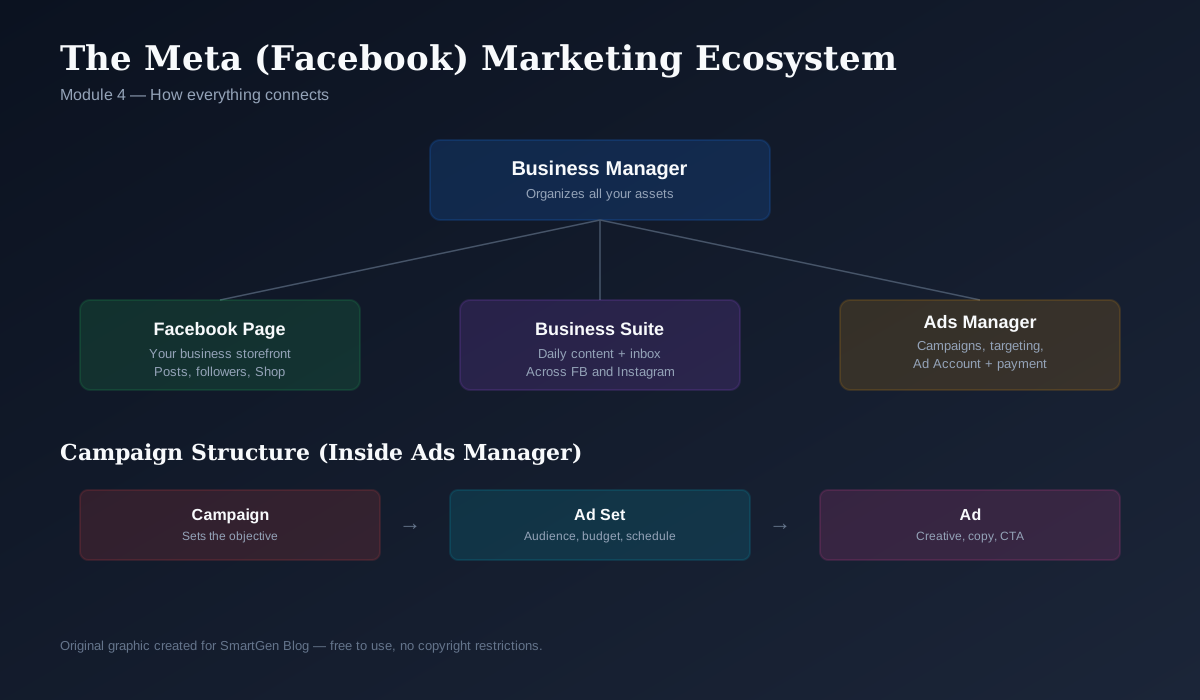
Your Business Manager/Business Account is the overall organizational umbrella. Inside it, you manage your Pages (covered in section 3), your Ad Accounts (where billing and payment live), and team access. Business Suite is where you handle daily content and messages. Ads Manager is where you build and manage paid campaigns, drawing from the Ad Account's budget and payment method.
5. Facebook Advertising and Its Types in Detail
Now we move into the heart of Meta marketing: paid advertising. Facebook (Meta) advertising works on the auction and targeting system explained in Module 3, but Meta offers a particularly wide range of ad formats and campaign types worth understanding individually.
Campaign Objectives
Every Facebook ad campaign begins by selecting an objective, generally grouped into three categories: Awareness (maximizing how many people see and remember your brand), Consideration (driving traffic, engagement, app installs, video views, or lead generation), and Conversion (driving actual sales, sign-ups, or other high-value actions, often using your website or app). Choosing the objective that truly matches your business goal is the single most important decision in setting up a campaign, since it determines how Meta's algorithm optimizes ad delivery.
Ad Formats in Detail
Image ads are the simplest format — a single static image paired with text and a call-to-action button, ideal for clear, simple messages or offers.
Video ads use moving footage to capture attention and convey more information, generally achieving higher engagement than static images, especially when optimized for sound-off viewing with captions (as covered in Module 1).
Carousel ads allow you to display multiple images or videos within a single ad unit, which users can swipe through — excellent for showcasing multiple products, telling a step-by-step story, or highlighting different features of one product.
Collection ads combine a primary video or image with a set of product images displayed beneath it in a grid, allowing users to browse a mini-catalogue directly within the ad — particularly effective for e-commerce businesses with a connected Product Catalogue.
Instant Experience ads (formerly Canvas ads) open into a full-screen, mobile-optimized experience after being tapped, combining images, video, text, and product catalogues into one immersive ad unit.
Lead ads include a built-in form that opens directly within Facebook or Instagram, allowing users to submit their contact information without ever leaving the app — significantly reducing friction compared to sending users to an external landing page.
Dynamic product ads automatically pull from your Product Catalogue to show specific products to specific users based on their past browsing behavior, such as showing someone an ad for the exact product they viewed on your website but didn't purchase.
Messenger ads appear directly within users' Messenger inbox or as ads that open a conversation thread, useful for businesses that rely heavily on direct conversation-based sales or support.
Targeting Options Recap
As covered in Module 3, Facebook advertising allows targeting by demographics, interests and behaviors, custom audiences (based on your existing customer data or website visitors), and lookalike audiences (new people resembling your best existing customers) — all of which apply directly within Meta's Ads Manager.
6. Creating Advertising Campaigns: Step-by-Step
Let's walk through the actual structure and process of building a Facebook ad campaign from scratch.
Understanding Campaign Structure
Every Facebook campaign follows a three-level structure. The Campaign level is where you set your overall objective (awareness, traffic, conversions, etc.). The Ad Set level is where you define your target audience, budget, schedule, and placements. The Ad level is where you build the actual creative — the images, videos, text, and call-to-action that people will actually see.
This structure matters because it allows you to test multiple audiences (at the Ad Set level) or multiple creatives (at the Ad level) within a single campaign, helping you identify what performs best.
Step-by-Step Campaign Creation
Step 1: Choose your objective. Open Ads Manager and select the campaign objective that matches your actual business goal, as discussed earlier in this module.
Step 2: Name your campaign clearly. Use a naming convention that helps you track campaigns later, such as including the date, objective, and target audience in the name.
Step 3: Set up your Ad Set. Define your target audience using demographics, interests, custom audiences, or lookalike audiences. Set your daily or lifetime budget, choose your campaign schedule (start and end dates, or ongoing), and select your ad placements (automatic placements are generally recommended for beginners, letting Meta's algorithm find the best-performing spots).
Step 4: Build your ad creative. Choose your ad format (image, video, carousel, etc.), upload your visual content, write compelling primary text, a clear headline, and select an appropriate call-to-action button (such as "Shop Now," "Learn More," or "Sign Up").
Step 5: Review and publish. Double-check your targeting, budget, and creative before publishing. Once live, your ad enters Meta's review process, which typically takes a few hours, checking for policy compliance before it begins running.
Step 6: Monitor performance. After your campaign goes live, regularly check key metrics in Ads Manager — reach, click-through rate, cost per result, and conversions — and be prepared to pause or adjust underperforming ad sets or creatives, while giving the algorithm enough initial time (generally a few days) to gather data before making major changes.
Step 7: Optimize based on data. Use the performance data to refine future campaigns — doubling down on audiences and creatives that perform well, and retiring those that don't, building a continuous cycle of testing and improvement.
7. Facebook Pixel (Preview)
You may have heard of the Facebook Pixel — a small piece of tracking code placed on your website that allows Meta to track visitor actions, build custom and lookalike audiences, and measure ad performance more accurately, including conversions that happen after someone clicks your ad.
The Pixel is an essential tool for serious Facebook advertisers, but it deserves its own dedicated, in-depth lesson rather than a brief summary here. We will cover the Facebook Pixel in full detail in Module 16 of this course, including how to install it, what events to track, and how to use it for retargeting and conversion optimization.
Visual Summary
Below is an original infographic summarizing the Meta marketing ecosystem covered in this module — how Pages, Business Manager, Business Suite, Ads Manager, and Ad Accounts all connect together. This graphic was created specifically for this guide and is completely free of copyright restrictions.
Module 4 Mega Guide Summary
This has been a long, detailed module, so let's recap everything we covered. We learned the real difference between a Facebook Page, Profile, and Group, and why every business needs a Page specifically. We explored Facebook Marketplace and Product Catalogues, and how they power both organic and paid product visibility. We walked through the complete step-by-step process of creating a professional Facebook Business Page. We untangled the relationship between Business Manager, Business Suite, Ads Manager, Ad Accounts, and payment modes. We covered every major Facebook ad format and campaign objective in detail. We walked through the full structure and process of creating an advertising campaign from scratch. And we previewed the Facebook Pixel, which will get its own complete lesson in Module 16.
Practice exercise: If you haven't already, create your Facebook Business Page following the step-by-step process in Section 3 of this guide, complete every section of your About information, and publish your first three posts before moving on to the next module.
What's Next?
In Module 5, we'll continue building your platform-specific marketing skills. Be sure you've also reviewed the earlier lessons in this course if you haven't already, since each module builds directly on the foundation established before it:
- Introduction to Online Digital Marketing: A Beginner's Guide
- Importance of Digital Marketing, How It Works, and Key Concepts
- Module 1: Basic Image and Video Editing with Filmora and Canva
- Module 3: Social Media Marketing (SMM) — Advertising Concepts and Platform Selection
- Module 5: Instagram Marketing — The Complete A to Z Mega Guide
- Module 6: X (Formerly Twitter) Marketing — The Complete A to Z Mega Guide
- Module 7: LinkedIn Marketing — The Complete A to Z Mega Guide
- Module 8: Pinterest Marketing — The Complete A to Z Mega Guide
- Module 9: Creating a WordPress Website — The Complete A to Z Mega Guide
- Module 10: Search Engine Optimization (SEO) — The Complete A to Z Mega Guide
This article was written by Sayad Md Bayezid Hosan for the SmartGen blog. For free tools to support your digital marketing journey, visit smartgentools.com.