
July 02, 2026 • General • By Sayad Md Bayezid Hosan
On-Page SEO Optimization — The Complete A to Z Mega Guide for Beginners
A complete, practical A to Z guide to on-page SEO optimization — conducting audits that reveal exactly what needs fixing, optimizing every HTML element from title tags to header structure, handling images and video correctly so they help rather than hurt your rankings, building a clean URL and internal link architecture, managing 301 redirects and 404 error pages, creating XML sitemaps and robots.txt files, and monitoring page performance so your results compound over time.
Welcome to This Guide: On-Page SEO
Search engine optimization has three broad pillars: on-page, off-page, and technical. Off-page covers backlinks and external authority. Technical covers site infrastructure — hosting, crawlability, server speed, and core web architecture. On-page covers everything you can directly control on the page itself: the words, the structure, the tags, the media, the links, the URLs, and the signals you send to search engines through well-organized HTML.
This guide focuses entirely on on-page, because it is the area you have the most direct control over right now, regardless of your budget, your domain age, or how many backlinks you have. A single page that is properly optimized, top to bottom, following everything in this guide, will consistently outperform pages that only partially address these elements — even on sites with stronger overall authority.
Before diving in, a quick note on the relationship between on-page and technical SEO. There is genuine overlap between the two, and you will notice a few topics in this guide — particularly XML sitemaps, robots.txt, and redirect handling — that some practitioners categorize as "technical." The reason I've included them here is that they are most meaningfully understood in the context of on-page decisions: which pages you include, which you exclude, and what happens when a URL changes. You cannot make good sitemaps or robots.txt decisions without understanding your page-level strategy first.
1. Conducting an On-Page Audit
Before fixing anything, you need to know exactly what's broken, what's suboptimal, and what's already performing well. An on-page audit is simply a structured review of every page element that affects SEO — done systematically, not by feel.
What an Audit Actually Covers
An on-page audit reviews title tags (are they present, unique, and the right length?), meta descriptions (are they compelling and not duplicated across pages?), header tag structure (is there exactly one H1 per page, and do the H2–H6 tags form a logical hierarchy?), content quality and keyword relevance (does each page clearly match a user's search intent?), image optimization (do all images have descriptive filenames and alt text?), URL structure (are URLs short, clean, and keyword-relevant?), internal link structure (are important pages well-linked from within the site?), page load speed (are large media files or render-blocking scripts slowing things down?), mobile usability (does the page work correctly on a phone screen?), and canonical tags (are there duplicate content signals being sent to search engines?).
How to Run Your Audit
Start with Google Search Console. It is free, it connects directly to Google's own data about your site, and the Coverage report alone will show you which pages Google has successfully indexed, which it has attempted but failed to index, and which have been intentionally excluded. The Performance report shows which pages are getting impressions and clicks, and — critically — which pages are getting impressions but very few clicks, which often signals weak title tags or meta descriptions.
For a deeper crawl, tools like Screaming Frog's SEO Spider (free up to 500 URLs) or Sitebulb can systematically crawl every page of your site and flag missing title tags, duplicate content, missing alt text, broken internal links, redirect chains, and dozens of other issues in a single scan.
Prioritizing What to Fix First
Not everything flagged in an audit is equally urgent. The highest-priority fixes, in practical order, are: pages with missing or duplicate title tags and meta descriptions, since these directly affect how Google presents your content in search results; pages with broken internal links (which both hurt user experience and waste crawl budget); images without alt text (which block search engines from understanding visual content); pages with missing H1 tags or multiple H1 tags; and pages with slow load times caused by uncompressed media.
Fix what's broken, then optimize what's merely mediocre, then focus on what's already working and can be pushed further.
2. Title Tag, Meta Description, Canonical Tag & Header Tag Optimization
These are the four HTML elements that do the most direct work in communicating your page's topic to both search engines and users before they even arrive on your page. Getting them right is the highest-leverage, lowest-effort optimization available to you.
Title Tag
The title tag is the single most important on-page SEO element. It appears as the large blue clickable link in Google's search results, in browser tabs, and in social media previews. Google uses it as a primary signal for understanding what a page is about.
Length: Keep it between 50 and 60 characters. Shorter than 50 characters means you are likely wasting valuable space. Longer than 60 and Google will truncate it in search results, often cutting off in awkward places.
Keyword placement: Include your primary keyword as close to the beginning of the title as possible. Google gives more weight to terms that appear early in the title, and users also scan from left to right, so a front-loaded keyword immediately confirms relevance.
Brand name: For most pages other than the homepage, put the brand name at the end, separated by a dash or pipe — not at the front, where it takes up space that would be better used by your keyword.
No keyword stuffing: "Best SEO Tips | SEO Guide | SEO Strategies | SEO Tools 2026" is a title that Google will either truncate, rewrite, or penalize. One primary keyword, one secondary reference if it fits naturally, and a compelling reason to click.
Example: Bad: "SmartGen - Tools, SEO, Digital Marketing Resources and Blog" → Good: "Free SEO Tools for Beginners — SmartGen"
Meta Description
The meta description does not directly affect your rankings. Google does not use it as a ranking signal. However, it significantly affects your click-through rate from the search results page, and click-through rate is a behavioral signal that does influence how Google values your page over time.
Length: 150 to 160 characters. Long enough to communicate genuine value; short enough to avoid truncation.
Include a keyword: Google bolds the words in a meta description that match the user's search query. This makes your result visually stand out in the list, which increases clicks.
End with a clear CTA: "Learn how," "Start free," "Read the guide," "See all tools" — a short action phrase at the end of a meta description consistently outperforms descriptions that just describe the page without inviting action.
Make every one unique: Duplicate meta descriptions across multiple pages are a frequent audit finding, and they confuse search engines about which page should rank for which query.
Canonical Tag
The canonical tag (<link rel="canonical" href="https://example.com/page/">) tells search engines which version of a page is the "master" version when multiple URLs might serve similar or identical content.
This comes up more often than beginners expect. A page accessible at both http:// and https://, or at both www. and non-www., or with and without a trailing slash, can appear to search engines as four different versions of the same content. Canonical tags consolidate all of those signals into a single URL.
When to use it: On any page that has duplicate or near-duplicate versions. On paginated series where page 2 and page 3 might contain overlapping content. On product pages in e-commerce where the same product appears under multiple category paths. On any page you want to syndicate to another site without splitting its authority.
Common mistakes: Setting the canonical to a non-indexable page (which creates a contradiction the crawler has to resolve). Having multiple conflicting canonical tags. Forgetting to update canonicals after a URL migration.
Header Tags (H1–H6)
Header tags structure your content for both users and search engines. Think of them the way you'd think of an academic paper's outline: H1 is the title, H2s are the major sections, H3s are subsections within each H2, and so on.
H1: One per page, always. It should contain your primary keyword, but it does not need to be identical to your title tag — and in most cases, a slightly different formulation that is more readable for a visitor is the better choice. If your title tag is optimized for search, let your H1 be optimized for the person already on your page.
H2s: These are your section headings. Each H2 should represent a genuinely distinct subtopic of the page, and together they should form a logical outline of the page's full content. Include secondary keywords naturally in H2 tags — not forced, but where they fit the topic of that section.
H3–H6: Use these to create hierarchy within sections. Do not skip levels (an H4 directly under an H1 without any H2 or H3 between them confuses both users and search engine parsers). Do not use header tags purely for visual styling — if you want larger text, use CSS, not H tags.
🔧 SmartGen Free Tool Recommendation
Meta Tag Generator — Generate Perfect HTML Meta Tags in Seconds
Writing title tags and meta descriptions manually for every page is time-consuming and easy to get wrong — especially getting the character length right or ensuring your Open Graph tags are properly formatted for social sharing. The SmartGen Meta Tag Generator does this for you instantly.
Type in your page title, description, keywords, and author — and the tool generates a complete, properly formatted block of HTML meta tags including your title tag, meta description, keywords tag, viewport tag, robots tag, and Open Graph tags for Facebook and Twitter cards. Copy the output and paste it directly into your page's
<head>section.Free. No login. No registration required.
Your data is never stored or shared. Read our Privacy Policy to understand exactly how SmartGen handles your information.
3. Multimedia File Optimization (Images, Videos & More)
Unoptimized media is one of the most common and most consequential on-page problems on the entire web. A single uncompressed hero image can add three seconds to your page load time, and a three-second delay meaningfully increases bounce rate, reduces conversions, and sends a negative user experience signal back to Google. Meanwhile, missing alt text on images means search engines receive zero information about what your visual content contains — a missed opportunity for additional keyword signals and image search visibility.
Image Optimization
Filenames: The moment you take a screenshot or export a design, rename the file before uploading it. IMG_4892.jpg tells Google nothing. on-page-seo-audit-checklist.jpg tells Google exactly what it depicts, associates that content with your page's topic, and can appear in Google Images for relevant queries.
Alt text: Alt text (the alt="" attribute on <img> tags) serves two purposes simultaneously: it tells screen readers what an image shows (accessibility) and it tells search engines what the image depicts (SEO). Write a concise, accurate description of what is in the image. Include your keyword where it genuinely fits the description. Do not stuff it — "on-page SEO tips on-page optimization on-page guide image" is keyword spam, not alt text.
Compression: This is the most impactful single step in image optimization for most sites. Use a tool like Squoosh (squoosh.app, free, no sign-up needed) or TinyPNG (tinypng.com) to compress images before uploading them. A 3MB JPEG photo of your team can typically be compressed to under 200KB with no visible quality loss, which directly translates to faster page load times.
Modern image formats: WebP and AVIF are newer image formats that achieve significantly smaller file sizes than JPEG or PNG at equivalent visual quality. Most modern browsers support both. If your CMS allows it, serving images in WebP or AVIF rather than traditional formats is one of the simplest performance wins available without any code changes.
Dimensions: Upload images at the size they will actually display on the page. If an image slot on your page is 800px wide, there is no reason to upload a 3000px-wide image and let the browser scale it down. The browser still downloads the full 3000px file even when displaying it at 800px.
Lazy loading: The loading="lazy" attribute on image tags tells the browser not to download off-screen images until the user scrolls near them. This significantly reduces the initial page load time, especially on long pages with many images. Simply add loading="lazy" to every <img> tag below the fold.
Video Optimization
Hosting: For most sites, hosting video on YouTube and embedding it rather than self-hosting the video file is the correct choice. Self-hosted video requires significant server bandwidth and can dramatically slow down your page. YouTube handles delivery, buffering, and mobile optimization automatically.
Thumbnails: A compelling custom thumbnail on a YouTube embed does more to increase click-through than almost any other single adjustment. Use a thumbnail that clearly communicates what the video covers.
Video Schema: Adding VideoObject structured data (Schema.org markup) to pages containing embedded video gives Google enough information to show a video rich result in search — including a thumbnail, title, description, and duration directly in the search results page. This can meaningfully increase click-through rates from organic search.
Captions and transcripts: Captions make videos accessible to users who watch without sound (the majority on mobile) and add indexable text content to your page that supports keyword relevance without any additional writing.
4. URL Structure, Internal Linking, No-Follow & Do-Follow Links
URL Structure
Your URLs are one of the smallest but most immediately visible signals in SEO — to both users and search engines. A clean, descriptive URL tells a user what they are about to read before they click, and it tells a search engine what the page is about in one of the first signals it reads.
Keep URLs short and descriptive: smartgentools.com/blog/on-page-seo-guide/ is clean and communicates the topic immediately. smartgentools.com/blog/?p=438&category=seo&ref=internal communicates nothing. The shorter, the better.
Use hyphens, not underscores: Google reads hyphens as word separators. It does not treat underscores the same way. on-page-seo is correctly read as three words; on_page_seo is read as one word. Always use hyphens.
Lowercase only: URLs are case-sensitive on most web servers. /On-Page-SEO/ and /on-page-seo/ could be treated as two different URLs, creating duplicate content. Use all lowercase, always.
Include your primary keyword: The keyword in the URL is a mild but real ranking signal, and it also helps users and other sites that link to your content accurately describe it in anchor text.
Avoid dates in URLs where possible: smartgentools.com/blog/2026/07/on-page-seo-guide/ will look outdated in 2028 even if you refresh the content. A timeless URL like smartgentools.com/blog/on-page-seo-guide/ allows the content to stay relevant indefinitely.
If you change a URL: Always set up a 301 redirect from the old URL to the new one (covered in detail in Section 5). Never change a URL without redirecting the old one — any rankings, links, and traffic the old URL had will evaporate.
Internal Linking
Internal links are the connections between pages within your own site, and they do two things simultaneously that most beginners underestimate. First, they pass authority from one page to another, which means a high-authority page on your site can help a newer, less-established page rank by linking to it. Second, they guide the Google crawler from page to page, which determines how thoroughly your site is indexed.
Anchor text matters: The clickable text of an internal link (the anchor text) tells search engines what the destination page is about. "Click here" and "read more" are weak anchor texts. "Complete guide to on-page SEO optimization" is a strong anchor text that sends a clear, relevant signal about the linked page.
Link depth: Any important page on your site should be reachable within three clicks from your homepage. Pages buried deeper than that get crawled less frequently, passed less authority, and ranked less reliably.
Orphan pages: An orphan page is a page with no internal links pointing to it — meaning Google can only find it if the URL is submitted directly in a sitemap. Orphan pages are a common audit finding and a genuine problem. Every page on your site should be linked from at least one other page.
Do not overlink: Having fifty internal links on a single page is not better than having ten. When the link count on a page is very high, each individual link carries less weight. Link where it genuinely serves the reader — where a related piece of content would add value if they clicked it.
No-Follow vs. Do-Follow Links
Every link is either dofollow or nofollow, and the difference matters for how search engine authority passes through your site.
Dofollow (default): This is the standard state of any link with no rel attribute. When you create a link without specifying anything else, it is dofollow by default. Dofollow links pass "link equity" (sometimes called link juice or PageRank) from the linking page to the destination page. Most internal links and most editorial external links should be dofollow.
Nofollow (rel="nofollow"): This attribute tells search engines not to follow the link and not to pass authority through it. Use nofollow for paid or sponsored links (where Google's guidelines require it), user-generated content links (like comment sections where you cannot vouch for every link someone posts), and links to pages you are required to link to but do not want to endorse.
Sponsored (rel="sponsored"): Introduced by Google in 2019 as a specific attribute for paid or affiliate links. It is treated similarly to nofollow but provides clearer intent information to the crawler.
UGC (rel="ugc"): Specifically for user-generated content areas — forums, comments, community posts — where you cannot vouch for every external link posted.
The practical rule: all your internal links should be dofollow. External links to resources you genuinely trust and recommend can be dofollow. Paid links, affiliate links, and links in comment sections should use the appropriate attribute.
A Note on What This Is Actually Building
At this point in the guide you have covered roughly half the terrain. The first four sections have dealt with understanding your pages, optimizing their most critical elements, making their media perform correctly, and connecting them intelligently.
What you are building is not a checklist. It is a system: a set of interconnected signals that tell search engines, collectively, that every page on your site has a clear purpose, is organized logically, loads quickly, and connects meaningfully to related content. None of these elements works in complete isolation — a perfectly written title tag on a page with no internal links pointing to it, four-megabyte images, and a missing H1 will still underperform. The system has to work as a whole.
The second half of this guide covers the structural and operational layer: how to handle page transitions and errors, how to communicate your site's architecture to Google systematically, and how to know whether any of this is actually working. These sections are less glamorous than title tag optimization but arguably more important for sustainable results.
Everything written in this guide is based on currently documented Google guidelines, widely established SEO practice, and practical patterns that show up consistently when you study what actually ranks. Where specific claims are contested in the SEO community, I have tried to say so rather than presenting one side as settled truth.
5. 301 Redirects & 404 Error Pages
301 Redirects
A 301 redirect is a server-level instruction that tells both browsers and search engines: "This URL has permanently moved to a new location. Please update your records and go directly to the new URL instead." It passes virtually all of the original URL's ranking signals, link equity, and indexing history to the new destination.
When to use a 301:
- When you permanently change a page's URL for any reason (restructuring, removing dates, fixing a typo in a slug).
- When you migrate an entire site to a new domain.
- When you merge two pages into one — the old URL 301s to the new combined page.
- When your site is accessible at both
http://andhttps://or bothwww.and non-www.— one version should 301 redirect to the canonical version.
301 vs. 302: A 302 redirect means "temporarily moved." Google holds the original page's ranking signals in reserve when it sees a 302, rather than transferring them to the destination. If a redirect is intended to be permanent, always use a 301. Using a 302 when you mean a 301 is one of the most common migration mistakes in SEO, and it costs rankings.
Redirect chains: A redirect chain is when URL A redirects to URL B, which redirects to URL C, which redirects to URL D. Each hop in the chain slightly weakens the authority transfer and adds load time. If you discover a chain in your audit, collapse it: make URL A redirect directly to URL D, removing all the intermediate hops.
Redirect loops: A redirect loop is when URL A redirects to URL B, which redirects back to URL A, creating an infinite circle. Browsers and crawlers detect and break out of loops, but they produce errors rather than pages. Always test your redirects after implementing them.
404 Error Pages
A 404 error means a browser or crawler requested a URL that does not exist on your server. Some 404s are harmless and expected — if someone types a URL incorrectly, you cannot control that. Others represent genuine SEO problems: internal links pointing to deleted or renamed pages, external sites linking to URLs that no longer exist, and URLs that were linked in your own sitemap but have since been removed without a redirect.
Auditing your 404s: Google Search Console's Pages report (under Indexing) flags URLs Google has tried to crawl but received a 404 response. Review this list regularly. For any URL that was previously indexed (meaning Google ranked it for something) and now returns a 404, set up a 301 redirect to the most relevant existing page.
Designing a useful 404 page: A 404 page that simply says "Page Not Found" with no navigation is a dead end — the user and the crawler both have nowhere to go. A well-designed 404 page includes your site's main navigation so users can find what they were looking for, a search box so they can look for the specific content, links to your most important or popular pages as a fallback, and a friendly, on-brand message that reassures the user rather than alarming them.
Soft 404s: A soft 404 is a page that returns a 200 (success) HTTP status code to the server but contains essentially no content — like an empty search results page or a deleted blog post that now shows a placeholder. Google identifies these because it can read the page and recognize there is nothing there, even though the server said the page exists. Soft 404s waste crawl budget and can dilute your site's overall quality signal. Fix them by either restoring the page content, setting up a proper 301 redirect, or returning a genuine 404 or 410 (gone) HTTP response.
6. Creating XML Sitemap & Robots.txt
XML Sitemap
An XML sitemap is a file that lists the URLs on your site you want search engines to know about, along with optional metadata about each URL (when it was last updated, how frequently it changes, how important it is relative to other pages). Submitting a sitemap to Google Search Console ensures that the crawler does not have to discover all your pages by following links alone — it can check the sitemap and go directly to the URLs you have listed.
What to include in your sitemap:
- Your highest-value, canonical URLs (no redirect URLs, no noindex pages).
- Pages you want indexed and ranked — blog posts, product pages, landing pages, key category pages.
- Your sitemap should reflect pages you are proud of and want Google to assess.
What to exclude from your sitemap:
- Pages with
noindexmeta tags (including them creates a contradiction Google has to resolve). - Redirect URLs (include only the final destination, not the old redirected URL).
- Paginated pages beyond the first page in most cases.
- Thin or low-quality pages you do not want highlighted to Google.
- Admin pages, login pages, and thank-you pages.
Submitting your sitemap: Log into Google Search Console, go to Sitemaps in the left menu, and paste your sitemap URL (usually https://yourdomain.com/sitemap.xml). Submit it. Google will begin crawling the URLs in the sitemap. Resubmit whenever you make major content additions or structural changes.
🔧 SmartGen Free Tool Recommendation
Sitemap Finder & Downloader — Find Any Website's Sitemap Instantly
Not sure where your sitemap is located, or want to check what a competitor's sitemap includes? The SmartGen Sitemap Finder & Downloader lets you enter any domain and instantly locate and download its XML sitemap — no manual guessing required.
Enter a website URL, and the tool automatically checks all common sitemap locations, finds the sitemap (including nested sitemap index files), and gives you a direct download. Useful for auditing your own site, understanding competitor architecture, and verifying your sitemap is correctly accessible before submitting to Google Search Console.
Free. No login. No registration required.
🗂️ Open Sitemap Finder & Downloader
Your data is never stored or shared. Read our Privacy Policy to understand exactly how SmartGen handles your information.
Robots.txt
Robots.txt is a plain text file located at the root of your domain (https://yourdomain.com/robots.txt). It contains instructions for web crawlers — primarily telling them which parts of your site they are and are not allowed to crawl.
Important clarification that beginners frequently misunderstand: robots.txt controls crawling, not indexing. If a page is blocked by robots.txt, Google cannot crawl it, but if other sites link to it, Google may still know it exists and may even show it in search results (with a message that no information about the page is available). To truly prevent a page from being indexed in search results, you need a noindex meta tag — but that requires the crawler to be able to reach the page and read it. Robots.txt and noindex serve related but distinct purposes.
Common robots.txt instructions:
User-agent: *
Disallow: /admin/
Disallow: /wp-login.php
Disallow: /search?
Allow: /

Sitemap: https://yourdomain.com/sitemap.xml
User-agent: *applies the following rules to all crawlers.Disallow: /admin/blocks crawlers from accessing the admin directory.Allow: /explicitly allows everything else.Sitemap:at the end tells crawlers where to find your sitemap.
What not to block: Do not block your CSS or JavaScript files. Google needs to render your pages, which requires access to the stylesheets and scripts that control how they look. Blocking these can cause Google to misread your page's layout and content.
Check it after any changes: A misconfigured robots.txt that accidentally blocks your entire site (Disallow: /) is one of the most catastrophic — and embarrassingly common — SEO disasters. Always verify changes to robots.txt using Google Search Console's robots.txt tester before they go live.
🔧 SmartGen Free Tool Recommendation
Robots.txt Generator — Build a Perfect Robots.txt File Without Code
Writing a robots.txt file manually requires understanding the syntax precisely — a single spacing or formatting error can block the wrong directories or fail to block the ones you intended. The SmartGen Robots.txt Generator makes this visual and error-free.
Select which user agents you want to configure, choose which directories to allow or disallow, add your sitemap URL, and the tool generates a correctly formatted, ready-to-upload robots.txt file. No coding knowledge required.
Free. No login. No registration required.
Your data is never stored or shared. Read our Privacy Policy to understand exactly how SmartGen handles your information.
7. Page Performance Monitoring & Updating
Getting your pages optimized is not a one-time job. Search results change, competitors improve their content, Google's algorithm evolves, and user behavior shifts. Page performance monitoring is the habit that keeps your SEO results compounding rather than decaying.
Core Web Vitals
Core Web Vitals are a set of real-world user experience metrics that Google uses as ranking signals. They measure three dimensions of page experience:
LCP (Largest Contentful Paint): How long it takes for the main content of a page to appear on screen. Google's target is under 2.5 seconds. The most common cause of a slow LCP is a large, uncompressed hero image or a server that takes too long to respond. Fix: compress images, use a CDN, and upgrade hosting if needed.
INP (Interaction to Next Paint): How quickly the page responds when a user clicks, taps, or types something. Google's target is under 200 milliseconds. Heavy or poorly written JavaScript is the most common cause. This metric replaced FID (First Input Delay) in March 2024.
CLS (Cumulative Layout Shift): How much the page's layout shifts unexpectedly while loading — for example, when an image loads and pushes the text down, causing the user to accidentally click the wrong thing. Google's target is under 0.1. Fix: always specify explicit width and height dimensions on images and video embeds, and use font-display settings that prevent text from jumping when a custom font loads.
Check your Core Web Vitals scores using Google's PageSpeed Insights tool (pagespeed.web.dev) for any specific URL, or in aggregate for your whole site under the Experience section of Google Search Console.
Google Search Console Performance Monitoring
Google Search Console's Performance report is the most direct measurement tool you have for SEO results. It shows:
- Total clicks: How many times users clicked through to your site from Google search.
- Total impressions: How many times your pages appeared in search results.
- Average CTR (Click-Through Rate): Clicks divided by impressions. A low CTR on pages with high impressions almost always points to weak title tags or meta descriptions.
- Average position: Your average ranking position for all queries. Note that this is an average across all queries a page ranks for — a page might show position 2 for its primary keyword and position 45 for a dozen secondary queries, and the average obscures the important number.
Filter the performance report by individual pages to see which queries each page ranks for. This reveals keyword opportunities you were not actively targeting — queries where Google already thinks your page is relevant and is testing it in results.
Content Freshness and Updating
Google gives a freshness bonus to recently updated content for queries where recency matters (news, current events, time-sensitive topics). For evergreen content (how-to guides, educational articles, tool comparisons), freshness still matters but in a different way — Google rewards pages that stay accurately up to date with current information over pages that were great three years ago but have since gone stale.
Build a simple content audit habit: every quarter, review your top 20 pages (by impressions in Search Console) and ask three questions: Is any specific data on this page outdated? Has Google's recommended guidance on this topic changed? Are there search queries this page is ranking for that I could serve better with a small update? You do not need to rewrite the whole page — targeted updates to specific sections, refreshed examples, and updated data points are often enough to trigger a fresh crawl and recover or extend your rankings.
🔧 SmartGen Bonus Tool Recommendation
Schema Generator — Add Structured Data to Unlock Rich Search Results
Schema markup (structured data) is the behind-the-scenes code that tells Google not just what your page says but what type of content it is — an article, a product, a recipe, an FAQ, a how-to guide, a local business, a review, a video, or more. When Google understands this context, it can display your result with enhanced features: star ratings, price ranges, FAQ dropdowns, breadcrumbs, how-to steps, and more — all visible directly in the search results without the user having to click through. These rich results typically earn significantly higher click-through rates than standard blue-link results.
The SmartGen Schema Generator makes this completely beginner-friendly. Select your content type (Article, Product, FAQ, LocalBusiness, Recipe, Video, Review, and more), fill in the fields, and the tool outputs ready-to-paste JSON-LD code. Add it to your page's
<head>section or just before</body>.Free. No login. No registration required.
Your data is never stored or shared. Read our Privacy Policy to understand exactly how SmartGen handles your information.
Your Complete SmartGen Free Toolbox for On-Page SEO
All four tools below are completely free, require no login and no registration, and are built and maintained by SmartGen for learners and practitioners at every level. Each tool was designed to remove the technical friction from a task that used to require either expensive software or manual coding knowledge.
| Tool | What It Does | Link |
|---|---|---|
| Meta Tag Generator | Generates title tag, meta description, keywords, OG tags, and Twitter Card tags in one click | Use Free → |
| Robots.txt Generator | Builds a perfectly formatted robots.txt file visually, no code required | Use Free → |
| Sitemap Finder & Downloader | Locates and downloads any website's XML sitemap instantly | Use Free → |
| Schema Generator | Creates JSON-LD structured data for rich Google results — Article, FAQ, Product, Video, and more | Use Free → |
All SmartGen tools are free to use and require no account. Your inputs are never stored or shared. SmartGen Privacy Policy →
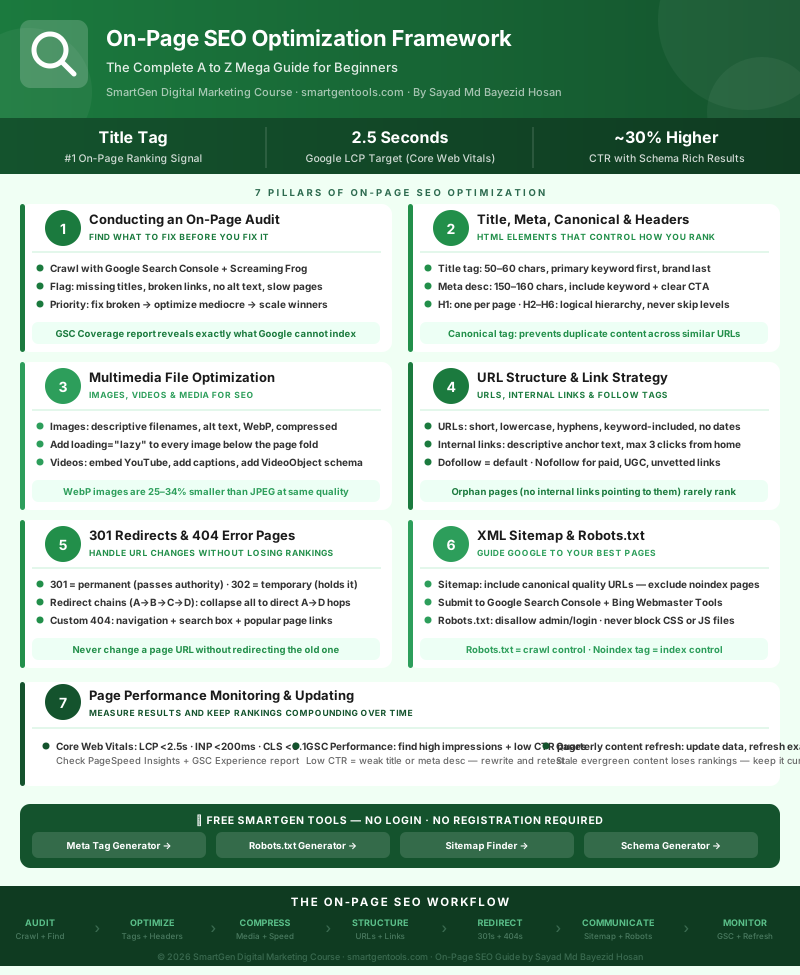
Visual Summary
The infographic below maps the complete on-page SEO optimization workflow — from initial audit through each optimization layer to performance monitoring and iteration. Created exclusively for this guide.
Guide Summary
In this guide, we covered how to run a systematic on-page audit to identify exactly what to fix and in what order; how to optimize title tags (50–60 characters, keyword-first), meta descriptions (150–160 characters with a CTA), canonical tags (to consolidate duplicate URL signals), and header tags (one H1 per page, logical H2–H6 hierarchy); how to optimize images with descriptive filenames, alt text, compression, modern formats, and lazy loading, and how to handle video for both performance and SEO; how to build clean URL structures, use dofollow links for authority transfer, apply nofollow and sponsored attributes correctly, and build a smart internal link network; how to implement 301 redirects correctly (versus 302), avoid redirect chains and loops, design useful 404 error pages, and identify and fix soft 404s; how to build XML sitemaps that include the right pages and exclude the wrong ones, submit them to Google Search Console, and write a robots.txt file that controls crawling without accidentally blocking important resources; and how to monitor Core Web Vitals (LCP, INP, CLS), use Google Search Console's performance report to find and fix CTR problems, and build a quarterly content refresh habit that keeps your rankings compounding rather than decaying.
Practice exercise: Open Google Search Console for your site. Go to Pages under Indexing. Look at the "Not indexed" tab and identify the single most common reason your pages are not being indexed. Then go to the Performance report, filter by Pages, find the page with the highest impressions but lowest CTR, open that page, and rewrite its title tag using the formula from Section 2. Track the CTR change over the next 30 days.
Frequently Asked Questions
How is on-page SEO different from technical SEO?
On-page SEO refers to the content and HTML elements on individual pages — title tags, meta descriptions, headers, images, URLs, and links. Technical SEO refers to the site's underlying infrastructure — hosting, crawlability, server response codes, HTTPS, structured data frameworks, and JavaScript rendering. There is meaningful overlap, and the line between them shifts depending on who you ask. The practical answer: on-page is what you optimize on the page itself; technical is what you optimize in the server, code, and architecture that delivers the page.
How long does it take to see results from on-page optimization?
Typically two to eight weeks for changes to pages Google already crawls regularly. Changes to title tags and meta descriptions can produce CTR changes relatively quickly once Google recrawls the page. Content-level improvements that affect ranking position usually take longer — several weeks to several months — depending on your domain's authority, the competitiveness of the keywords, and how frequently Google crawls your pages.
Do meta keywords still matter?
No. Google officially stopped using the meta keywords tag as a ranking signal in 2009. Including it does not help; it also does not hurt. Most modern SEO workflows simply omit it. The keywords that matter are the ones in your title tag, headers, body content, URL, and image alt text.
How many H1 tags should a page have?
One. Technically, HTML5 allows multiple H1 tags within different article or section elements, and Google has stated it can handle multiple H1 tags. In practice, one clear H1 containing your primary keyword is the cleanest and most widely recommended approach, and it avoids any ambiguity about what the page's primary topic is.
Is robots.txt the same as a noindex tag?
No, and confusing the two is a genuinely common mistake. Robots.txt controls whether Google's crawler can access a URL. A noindex meta tag controls whether Google can add a URL to its search index. Blocking a URL in robots.txt does not prevent it from appearing in search results if other sites link to it — Google will know the URL exists, it just cannot read the page. To both prevent crawling and prevent indexing reliably, you need a noindex tag on a page that is NOT blocked by robots.txt.
What is a canonical tag and do I always need one?
A canonical tag tells Google which URL is the authoritative version of a page when multiple URLs serve similar or identical content. You do not need one on every page — if your URLs are clean, consistent, and have no duplication issues, the need is lower. But for any site with e-commerce product pages accessible through multiple category paths, paginated content, or URLs with query string parameters, canonical tags are important.
What's Next?
Continue building your SEO and digital marketing knowledge with the earlier modules in this course:
- Introduction to Online Digital Marketing: A Beginner's Guide
- Module 4: Meta (Facebook) Marketing — The Complete A to Z Mega Guide
- Module 5: Instagram Marketing — The Complete A to Z Mega Guide
- Module 6: X (Formerly Twitter) Marketing — The Complete A to Z Mega Guide
- Module 7: LinkedIn Marketing — The Complete A to Z Mega Guide
- Module 8: Pinterest Marketing — The Complete A to Z Mega Guide
This article was written by Sayad Md Bayezid Hosan for the SmartGen blog. All SmartGen tools mentioned are free to use with no registration required. SmartGen Privacy Policy · Visit SmartGen Tools