
✅ Fact-Checked by Sayad Md Bayezid Hosan — Web Developer, SEO Specialist & Founder of SmartGen Tools | Last Updated: June 27, 2026
📖 Table of Contents
- What Is a Live HTML CSS JS Previewer?
- Why Every Developer Needs an Online HTML Editor in 2026
- Introducing SmartGen's Live HTML/CSS/JS Previewer
- How to Use the Tool — Step-by-Step
- HTML Basics: Write Your First Live Page
- CSS Basics: Style Your Page in Real Time
- JavaScript Basics: Add Interactivity Instantly
- 10 Real-World HTML/CSS/JS Code Examples to Try
- Advanced Use Cases for Professionals
- SmartGen HTML Previewer vs Other Online Editors
- Common Errors and How to Fix Them
- Best Practices for Writing Clean HTML, CSS & JS
- FAQ — Live HTML CSS JS Editor Online
- Final Developer Checklist
🔍 What Is a Live HTML CSS JS Previewer? {#what-is-html-previewer}
Definition: A Live HTML CSS JS Previewer is a browser-based code editor that lets you write HTML, CSS, and JavaScript in real time and instantly see the rendered output — without installing any software, setting up a local server, or saving files to your computer.
Think of it as a virtual sandbox for web code. You type on the left, your working webpage appears on the right. Every keystroke updates the preview immediately.
The three languages it handles are the foundational trio of the web:
| Language | Role | Example |
|---|---|---|
| HTML (HyperText Markup Language) | Structure — the skeleton of every webpage | Headings, paragraphs, buttons, images, links |
| CSS (Cascading Style Sheets) | Design — the visual appearance of HTML elements | Colors, fonts, layouts, animations, spacing |
| JavaScript (JS) | Behavior — the interactive logic that makes pages dynamic | Click events, form validation, animations, API calls |
Every website you have ever visited — from Google's homepage to an e-commerce checkout page — is built from these three languages working together. A Live HTML/CSS/JS Previewer lets you experiment with all three in one place, instantly.
Who uses live HTML previewers?
Beginner learners • Front-end developers • UI/UX designers • Email template builders • Bloggers writing custom HTML • Teachers and students • Freelancers prototyping for clients • Anyone who wants to test code without setting up a local environment
💡 Why Every Developer Needs an Online HTML Editor in 2026 {#why-you-need-it}
In 2026, web development has never been more accessible — and the browser-based code editor is one of the biggest reasons why. Here is why hundreds of thousands of developers, students, and designers use online HTML editors every day:
✅ Reason 1 — Zero Setup, Zero Friction
Setting up a traditional local development environment requires:
- Installing a code editor (VS Code, Sublime Text)
- Installing a local server (XAMPP, WAMP, Node.js)
- Creating project folders and file structures
- Opening files in the browser manually
With a Live HTML/CSS/JS Previewer, you open a URL and start coding. Total setup time: 0 seconds.
✅ Reason 2 — Instant Visual Feedback
Traditional coding involves a loop: write code → save file → switch to browser → refresh → look at result → switch back. Each cycle takes 10–30 seconds.
A live previewer collapses this to zero delay. As you type, the rendered output changes. This dramatically speeds up learning and debugging.
✅ Reason 3 — Works on Any Device
Online HTML editors work on:
- Windows, macOS, Linux desktops
- Chromebooks (no local software possible)
- Tablets and iPads (surprisingly effective for CSS work)
- Smartphones (great for quick edits and demos on the go)
✅ Reason 4 — Perfect for Learning HTML, CSS & JS
Studies in computer science education consistently show that immediate feedback accelerates learning. When a student changes a CSS color value and instantly sees the result, the connection between code and output becomes intuitive much faster than editing files offline.
✅ Reason 5 — Ideal for Prototyping and Client Demos
Freelancers and agency developers use live previewers to:
- Rapidly prototype UI components before building in a framework
- Show clients a live working demo during a Zoom call
- Test a specific CSS animation or JavaScript behavior in isolation
- Create quick HTML email templates
✅ Reason 6 — No Account, No Data Risk
Many online tools require you to sign up, save your work to their servers, or agree to data sharing terms. Privacy-focused tools like SmartGen's HTML Previewer process everything locally in your browser — your code never leaves your device.
🛠️ Introducing SmartGen's Live HTML/CSS/JS Previewer {#introducing-tool}
Tool URL: https://smartgentools.com/html-code-preview/
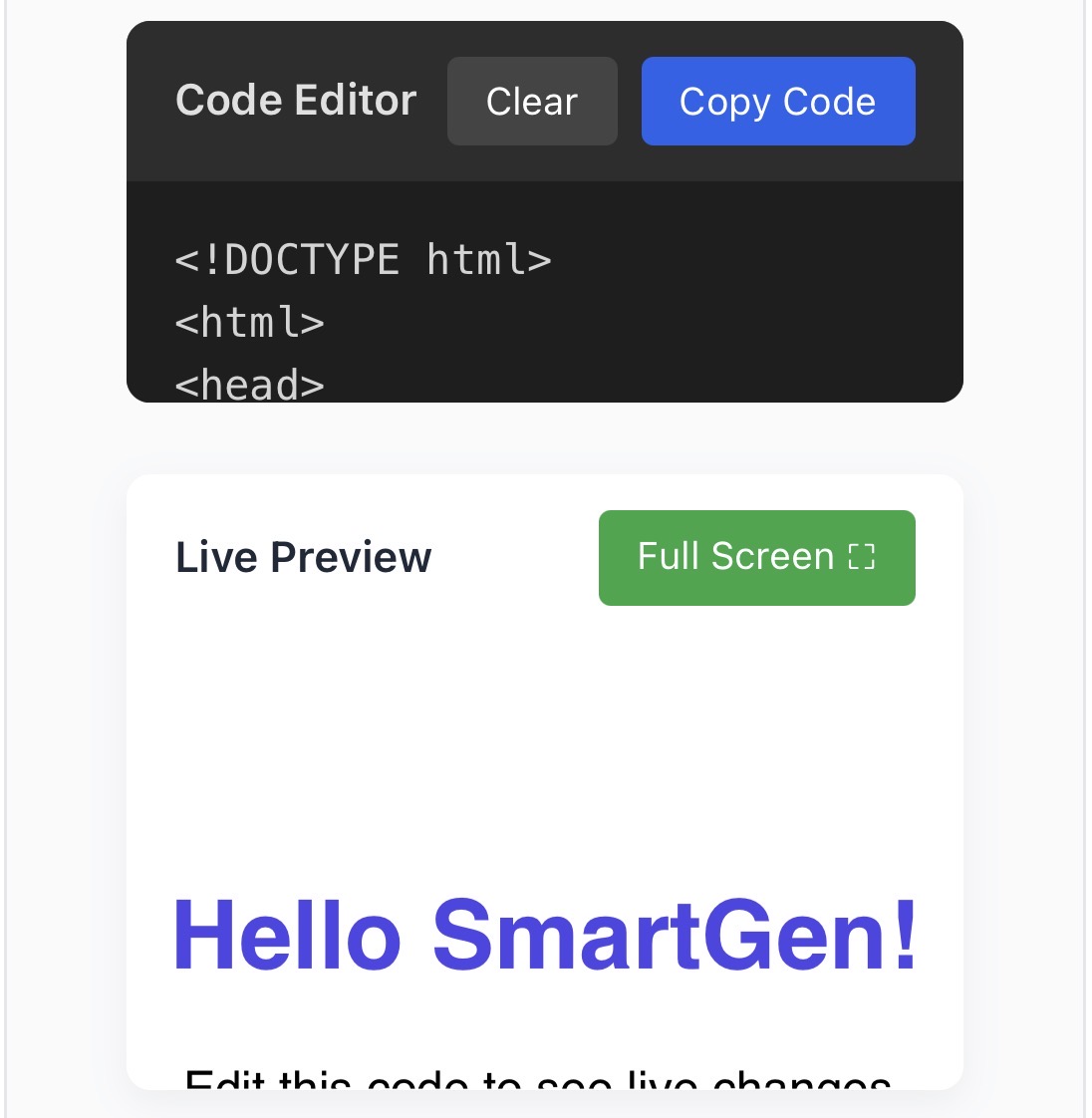
Definition: SmartGen's Live HTML/CSS/JS Previewer is a free, client-side, browser-based code editor that renders HTML, CSS, and JavaScript output in real time — with a split-screen editor and live preview panel, full-screen mode, one-click code copy, and zero signup requirements.
Core Features
⚡ Real-Time Live Preview (Live-Sync Technology)
Every character you type immediately updates the rendered preview panel. There is no "Run" button to click, no refresh required. The preview is always in sync with your code.
📝 Integrated Code Editor with Syntax Awareness
The left-side editor is built for HTML, CSS, and JavaScript. It displays your code in a clean, readable format that distinguishes tags, properties, values, and functions visually.
🖥️ Full-Screen Preview Mode
Click the "Full Screen ⛶" button to expand the live preview to fill your entire screen. This is invaluable for:
- Testing responsive layouts without distraction
- Presenting a demo to a client or audience
- Checking how a design looks at realistic viewport sizes
📋 One-Click Copy
Click "Copy Code" to instantly copy your entire HTML/CSS/JS to your clipboard. Paste it directly into your CMS, email template builder, website builder, or file editor.
🗑️ Clear Button
Start fresh instantly with the "Clear" button. No confirmation dialogs, no lost files — just a clean slate when you want to begin a new experiment.
🔒 100% Client-Side Privacy
Your code is processed entirely within your browser. Nothing is sent to SmartGen's servers. No code is stored, logged, or shared. This makes it safe for:
- Testing proprietary company code
- Building confidential client projects
- Experimenting with sensitive form or payment UI
📱 Fully Mobile-Responsive Interface
The tool adjusts its layout for smartphones and tablets, allowing you to edit and preview HTML on mobile devices with the same precision as desktop.
🆓 Always Free — No Limits
Unlimited sessions, unlimited code length, unlimited uses. No premium tier, no credit card, no account.
🚀 How to Use the SmartGen HTML/CSS/JS Previewer — Step by Step {#how-to-use}
Follow these steps to go from zero to a working live webpage in under 3 minutes.
Step 1 — Open the Tool
Go to: https://smartgentools.com/html-code-preview/
The tool loads immediately. You will see:
- Left panel: The code editor (pre-loaded with a simple HTML starter)
- Right panel: The live preview of that starter code
Step 2 — Read the Starter Code
By default, the editor contains this example:
<html>
<head>
</head>
<body>
  <h1>Hello SmartGen!</h1>
  <p>Edit this code to see live changes.</p>
  <button class="btn" onclick="alert('It works!')">Click Me</button>
</body>
</html>
The right panel shows a live rendered version — a heading, a paragraph, and a clickable button. Click the button in the preview to see JavaScript working immediately.
Step 3 — Edit the Code and Watch the Preview Update
Change the text inside <h1> from Hello SmartGen! to your own name or content. Watch the preview panel update in real time as you type.
Try changing the button text. Try adding a new <p> paragraph. Every edit is instantly reflected.
Step 4 — Add CSS Styling
Inside the <head> tag, add a <style> block:
<head>
  <style>
    body {
      font-family: Arial, sans-serif;
      background-color: #f0f4ff;
      text-align: center;
      padding: 40px;
    }
    h1 {
      color: #2c3e50;
    }
    .btn {
      background-color: #3498db;
      color: white;
      padding: 12px 24px;
      border: none;
      border-radius: 6px;
      cursor: pointer;
      font-size: 16px;
    }
    .btn:hover {
      background-color: #2980b9;
    }
  </style>
</head>
Watch the preview transform instantly from plain black-and-white HTML into a styled, colored, professional-looking layout.
Step 5 — Add JavaScript Behavior
Inside the <body> or before the closing </html> tag, add a <script> block:
<script>
  document.querySelector('.btn').addEventListener('click', function() {
    document.querySelector('h1').style.color = '#e74c3c';
    document.querySelector('h1').textContent = 'You clicked the button!';
  });
</script>
Click the button in the preview. Watch the heading color and text change live. This is JavaScript DOM manipulation — one of the most important concepts in web development — running instantly in your browser.
Step 6 — Copy Your Code or Go Full Screen
Once satisfied:
- Click "Copy Code" to copy everything to your clipboard
- Click "Full Screen ⛶" to see your page at full viewport size
- Click "Clear" to start a new experiment
📄 HTML Basics: Write Your First Live Page {#html-basics}
Definition: HTML (HyperText Markup Language) is the standard markup language used to create the structure and content of web pages. It uses tags — written in angle brackets like <tag> — to define elements such as headings, paragraphs, images, links, and forms.
Essential HTML Tags Every Beginner Must Know
Paste each of these examples into the SmartGen previewer and see them render instantly:
Headings (H1–H6)
<h1>This is the Largest Heading</h1>
<h2>This is a Section Heading</h2>
<h3>This is a Sub-section Heading</h3>
<h4>Smaller Still</h4>
<h5>Getting Small</h5>
<h6>Smallest Heading</h6>
H1 is reserved for your page's main title — use only one per page for best SEO practice.
Paragraphs and Text
<p>This is a paragraph. It can contain <strong>bold text</strong>,
<em>italic text</em>, and <a href="https://smartgentools.com">links</a>.</p>
Images
<img src="https://via.placeholder.com/300x200"
     alt="A placeholder image showing 300 by 200 pixels"
     width="300" height="200">
Ordered and Unordered Lists
<!-- Numbered list -->
<ol>
  <li>First item</li>
  <li>Second item</li>
  <li>Third item</li>
</ol>

<!-- Bullet list -->
<ul>
  <li>Apple</li>
  <li>Banana</li>
  <li>Cherry</li>
</ul>
Links
<a href="https://smartgentools.com" target="_blank">
  Visit SmartGen Tools
</a>
Tables
<table border="1" cellpadding="8">
  <tr>
    <th>Name</th>
    <th>Role</th>
    <th>Country</th>
  </tr>
  <tr>
    <td>Sayad</td>
    <td>Developer</td>
    <td>Bangladesh</td>
  </tr>
  <tr>
    <td>Alex</td>
    <td>Designer</td>
    <td>USA</td>
  </tr>
</table>
Forms
<form>
  <label for="name">Your Name:</label><br>
  <input type="text" id="name" placeholder="Enter your name"><br><br>

  <label for="email">Email:</label><br>
  <input type="email" id="email" placeholder="Enter your email"><br><br>

  <button type="submit">Submit</button>
</form>
The HTML Document Structure
Every valid HTML page follows this skeleton. Use it as your starting template in the SmartGen previewer:
<!DOCTYPE html>
<html lang="en">
<head>
  <meta charset="UTF-8">
  <meta name="viewport" content="width=device-width, initial-scale=1.0">
  <title>My Page Title</title>
  <style>
    /* Your CSS goes here */
  </style>
</head>
<body>

  <!-- Your HTML content goes here -->

  <script>
    // Your JavaScript goes here
  </script>
</body>
</html>
🎨 CSS Basics: Style Your Page in Real Time {#css-basics}
Definition: CSS (Cascading Style Sheets) is a stylesheet language that controls the visual presentation of HTML elements — including colors, fonts, spacing, layout, and animations. CSS rules are written as selector { property: value; } and can be placed inside a <style> tag in your HTML <head>.
The CSS Rule Anatomy
selector {
  property: value;
  property: value;
}
Example:
h1 {
  color: #e74c3c;      /* Red text */
  font-size: 36px;     /* Large font */
  text-align: center;  /* Centered */
}
CSS Properties You Must Learn First
Paste these into the SmartGen previewer inside a <style> tag and see results instantly:
Colors and Backgrounds
body {
  background-color: #1a1a2e;  /* Dark navy background */
  color: #eaeaea;              /* Light grey text */
}

h1 {
  color: #e94560;              /* Accent red heading */
  background-color: #16213e;
  padding: 20px;
}
Fonts and Typography
body {
  font-family: 'Segoe UI', Tahoma, Geneva, Verdana, sans-serif;
  font-size: 16px;
  line-height: 1.7;
  letter-spacing: 0.3px;
}

h1 {
  font-weight: 800;
  font-size: 2.5rem;
  text-transform: uppercase;
}
The CSS Box Model: Margin, Padding, Border
.card {
  width: 300px;
  padding: 20px;       /* Space inside the box */
  margin: 30px auto;   /* Space outside the box, centered */
  border: 2px solid #3498db;
  border-radius: 12px; /* Rounded corners */
  background: white;
  box-shadow: 0 4px 15px rgba(0,0,0,0.1);
}
Flexbox Layout (Most Important CSS Layout in 2026)
.container {
  display: flex;
  justify-content: center;  /* Horizontal alignment */
  align-items: center;      /* Vertical alignment */
  gap: 20px;                /* Space between items */
  flex-wrap: wrap;          /* Wrap on smaller screens */
}
CSS Hover Animations
.btn {
  background: #3498db;
  color: white;
  padding: 12px 28px;
  border: none;
  border-radius: 8px;
  cursor: pointer;
  transition: all 0.3s ease;  /* Smooth transition */
}

.btn:hover {
  background: #2ecc71;
  transform: translateY(-3px);       /* Lift effect */
  box-shadow: 0 8px 20px rgba(0,0,0,0.2);
}
⚙️ JavaScript Basics: Add Interactivity Instantly {#js-basics}
Definition: JavaScript (JS) is a lightweight, interpreted programming language that runs in your browser and makes web pages interactive. It can respond to user events (clicks, key presses, form submissions), modify HTML content dynamically, fetch data from APIs, and control browser behavior — all without reloading the page.
JavaScript Essentials to Try in the Previewer
1. Change Text on Click
<h2 id="title">Click the button below</h2>
<button onclick="changeText()">Change Text</button>

<script>
  function changeText() {
    document.getElementById('title').textContent = 'Text changed by JavaScript!';
    document.getElementById('title').style.color = '#e74c3c';
  }
</script>
2. Show / Hide an Element
<div id="box" style="background:#3498db;color:white;padding:20px;display:none;border-radius:8px;">
  I was hidden. Now I am visible!
</div>
<button onclick="toggleBox()">Toggle Box</button>

<script>
  function toggleBox() {
    const box = document.getElementById('box');
    if (box.style.display === 'none') {
      box.style.display = 'block';
    } else {
      box.style.display = 'none';
    }
  }
</script>
3. Form Validation
<input type="text" id="nameInput" placeholder="Enter your name">
<button onclick="validate()">Submit</button>
<p id="message"></p>

<script>
  function validate() {
    const name = document.getElementById('nameInput').value;
    const msg = document.getElementById('message');
    if (name.trim() === '') {
      msg.textContent = '❌ Please enter your name.';
      msg.style.color = 'red';
    } else {
      msg.textContent = '✅ Hello, ' + name + '! Welcome.';
      msg.style.color = 'green';
    }
  }
</script>
4. Live Character Counter
<textarea id="textArea" maxlength="200" placeholder="Type here..."
  style="width:100%;padding:10px;font-size:15px;" oninput="countChars()"></textarea>
<p id="count">0 / 200 characters</p>

<script>
  function countChars() {
    const len = document.getElementById('textArea').value.length;
    document.getElementById('count').textContent = len + ' / 200 characters';
  }
</script>
5. Dark / Light Mode Toggle
<button onclick="toggleMode()">🌙 Toggle Dark Mode</button>

<script>
  function toggleMode() {
    document.body.classList.toggle('dark');
  }
</script>

<style>
  body { background: white; color: #333; transition: all 0.3s; padding: 30px; }
  body.dark { background: #1a1a2e; color: #eaeaea; }
</style>
💻 10 Real-World HTML/CSS/JS Code Examples to Try Right Now {#code-examples}
Copy each of these complete examples into the SmartGen HTML Previewer and see them work live.
Example 1 — Animated Hero Section
<!DOCTYPE html>
<html lang="en">
<head>
<style>
  * { margin: 0; padding: 0; box-sizing: border-box; }
  body {
    font-family: 'Segoe UI', sans-serif;
    background: linear-gradient(135deg, #667eea, #764ba2);
    min-height: 100vh;
    display: flex;
    align-items: center;
    justify-content: center;
    text-align: center;
  }
  .hero h1 {
    font-size: 3rem;
    color: white;
    animation: fadeIn 1.2s ease;
  }
  .hero p {
    color: rgba(255,255,255,0.85);
    font-size: 1.2rem;
    margin: 16px 0 24px;
    animation: fadeIn 1.8s ease;
  }
  .btn {
    background: white;
    color: #764ba2;
    padding: 14px 32px;
    border: none;
    border-radius: 50px;
    font-size: 1rem;
    font-weight: 700;
    cursor: pointer;
    animation: fadeIn 2.4s ease;
    transition: transform 0.2s;
  }
  .btn:hover { transform: scale(1.05); }
  @keyframes fadeIn {
    from { opacity: 0; transform: translateY(20px); }
    to   { opacity: 1; transform: translateY(0); }
  }
</style>
</head>
<body>
  <div class="hero">
    <h1>Welcome to SmartGen</h1>
    <p>Free tools for developers, marketers, and creators.</p>
    <button class="btn">Get Started Free</button>
  </div>
</body>
</html>
Example 2 — Responsive Pricing Card
<!DOCTYPE html>
<html>
<head>
<style>
  body { font-family: Arial, sans-serif; background: #f5f5f5; display: flex; justify-content: center; padding: 40px; }
  .card {
    background: white;
    border-radius: 16px;
    padding: 40px 30px;
    width: 280px;
    text-align: center;
    box-shadow: 0 8px 30px rgba(0,0,0,0.12);
    transition: transform 0.3s;
  }
  .card:hover { transform: translateY(-8px); }
  .badge { background: #3498db; color: white; padding: 4px 14px; border-radius: 20px; font-size: 12px; }
  .price { font-size: 3rem; font-weight: 800; color: #2c3e50; margin: 16px 0; }
  .price span { font-size: 1rem; color: #999; }
  ul { list-style: none; text-align: left; margin: 20px 0; }
  ul li::before { content: "✅ "; }
  ul li { margin: 10px 0; color: #555; }
  .btn { background: #3498db; color: white; border: none; padding: 14px; width: 100%; border-radius: 8px; font-size: 1rem; cursor: pointer; }
</style>
</head>
<body>
  <div class="card">
    <span class="badge">MOST POPULAR</span>
    <div class="price">$0<span>/mo</span></div>
    <ul>
      <li>Unlimited tool usage</li>
      <li>No account required</li>
      <li>100% client-side privacy</li>
      <li>Mobile responsive</li>
      <li>Live HTML preview</li>
    </ul>
    <button class="btn">Start For Free</button>
  </div>
</body>
</html>
Example 3 — Interactive Quiz
<!DOCTYPE html>
<html>
<head>
<style>
  body { font-family: Arial, sans-serif; max-width: 500px; margin: 40px auto; padding: 20px; }
  h2 { color: #2c3e50; }
  .option { display: block; padding: 12px 16px; margin: 10px 0; background: #ecf0f1;
            border: none; border-radius: 8px; width: 100%; text-align: left;
            cursor: pointer; font-size: 15px; transition: background 0.2s; }
  .option:hover { background: #3498db; color: white; }
  .option.correct { background: #2ecc71; color: white; }
  .option.wrong { background: #e74c3c; color: white; }
  #result { font-size: 1.2rem; font-weight: bold; margin-top: 20px; }
</style>
</head>
<body>
  <h2>🧠 HTML Quiz</h2>
  <p>What does HTML stand for?</p>
  <button class="option" onclick="answer(this, false)">High Text Markup Language</button>
  <button class="option" onclick="answer(this, true)">HyperText Markup Language</button>
  <button class="option" onclick="answer(this, false)">HyperText Modern Language</button>
  <button class="option" onclick="answer(this, false)">Hyperlink Text Makeup Language</button>
  <div id="result"></div>

<script>
  function answer(btn, correct) {
    document.querySelectorAll('.option').forEach(b => b.disabled = true);
    btn.classList.add(correct ? 'correct' : 'wrong');
    document.getElementById('result').textContent = correct
      ? '✅ Correct! HTML = HyperText Markup Language.'
      : '❌ Not quite. The answer is HyperText Markup Language.';
    document.getElementById('result').style.color = correct ? '#27ae60' : '#e74c3c';
  }
</script>
</body>
</html>
Example 4 — CSS Glassmorphism Card
<!DOCTYPE html>
<html>
<head>
<style>
  body {
    min-height: 100vh;
    background: linear-gradient(135deg, #f093fb, #f5576c, #4facfe);
    display: flex; align-items: center; justify-content: center;
    font-family: 'Segoe UI', sans-serif;
  }
  .glass {
    background: rgba(255, 255, 255, 0.15);
    backdrop-filter: blur(12px);
    -webkit-backdrop-filter: blur(12px);
    border: 1px solid rgba(255,255,255,0.3);
    border-radius: 20px;
    padding: 40px;
    width: 320px;
    text-align: center;
    color: white;
    box-shadow: 0 8px 32px rgba(0,0,0,0.2);
  }
  .glass h2 { font-size: 1.8rem; margin-bottom: 12px; }
  .glass p { opacity: 0.85; line-height: 1.6; }
  .avatar { width: 70px; height: 70px; border-radius: 50%; background: white; margin: 0 auto 16px; display: flex; align-items: center; justify-content: center; font-size: 2rem; }
</style>
</head>
<body>
  <div class="glass">
    <div class="avatar">👤</div>
    <h2>Glassmorphism Card</h2>
    <p>A modern UI design trend using blur, transparency, and soft borders to create a frosted-glass effect.</p>
  </div>
</body>
</html>
Example 5 — Countdown Timer
<!DOCTYPE html>
<html>
<head>
<style>
  body { font-family: Arial, sans-serif; background: #1a1a2e; color: white;
         display: flex; flex-direction: column; align-items: center; justify-content: center; min-height: 100vh; }
  h1 { margin-bottom: 30px; color: #e94560; }
  .timer { display: flex; gap: 20px; }
  .unit { text-align: center; background: #16213e; border-radius: 12px; padding: 20px; min-width: 90px; }
  .unit span { display: block; font-size: 3rem; font-weight: 800; color: #e94560; }
  .unit label { font-size: 0.85rem; color: #aaa; text-transform: uppercase; }
</style>
</head>
<body>
  <h1>⏳ Launching in...</h1>
  <div class="timer">
    <div class="unit"><span id="d">00</span><label>Days</label></div>
    <div class="unit"><span id="h">00</span><label>Hours</label></div>
    <div class="unit"><span id="m">00</span><label>Mins</label></div>
    <div class="unit"><span id="s">00</span><label>Secs</label></div>
  </div>
<script>
  const target = new Date();
  target.setDate(target.getDate() + 7);
  setInterval(() => {
    const diff = target - new Date();
    document.getElementById('d').textContent = String(Math.floor(diff/86400000)).padStart(2,'0');
    document.getElementById('h').textContent = String(Math.floor((diff%86400000)/3600000)).padStart(2,'0');
    document.getElementById('m').textContent = String(Math.floor((diff%3600000)/60000)).padStart(2,'0');
    document.getElementById('s').textContent = String(Math.floor((diff%60000)/1000)).padStart(2,'0');
  }, 1000);
</script>
</body>
</html>
Additional Examples to Explore
Try building these yourself using the SmartGen HTML Previewer — great practice projects:
- Example 6: A responsive navigation bar with a hamburger menu for mobile
- Example 7: A CSS-only image gallery with hover zoom effects
- Example 8: A JavaScript to-do list with add and delete functionality
- Example 9: A simple calculator with HTML buttons and JS logic
- Example 10: A multi-step form wizard with JavaScript step navigation
All of these are achievable with pure HTML, CSS, and JavaScript — no frameworks needed — and the SmartGen previewer gives you instant feedback as you build.
🎯 Advanced Use Cases for Professionals {#advanced-use-cases}
Beyond learning and quick experiments, the SmartGen HTML/CSS/JS Previewer serves powerful professional workflows:
Use Case 1 — Prototyping UI Components Before Framework Development
Before spending time building a React, Vue, or Angular component, use the previewer to:
- Nail the CSS layout and spacing
- Confirm the JavaScript logic works
- Validate the interaction design with the client
Once the pure HTML/CSS/JS prototype is approved, port it into your framework. This avoids wasting framework development time on designs that need revision.
Use Case 2 — Building and Testing HTML Email Templates
HTML emails use a completely different coding standard from web pages — no external CSS files, limited CSS properties, table-based layouts. The SmartGen previewer is perfect for:
- Writing inline-style HTML email code
- Seeing the rendered result immediately
- Copying the final code into Mailchimp, ConvertKit, or your ESP's HTML editor
Use Case 3 — Testing CSS Animations and Transitions
CSS animations can be difficult to visualize without a live preview. The previewer lets you:
- Write
@keyframesanimation code - See the animation play instantly
- Tweak
duration,timing-function,delay, anditerationvalues in real time - Perfect the animation before integrating it into a production codebase
Use Case 4 — Creating Standalone HTML Widgets for Websites
Many website builders (WordPress, Wix, Squarespace, Webflow) allow you to embed custom HTML blocks. Use the SmartGen previewer to:
- Build a custom countdown timer
- Create a unique pricing table
- Design a testimonial carousel
- Build a custom contact form with JavaScript validation
Test the widget fully, then copy the finished code into your website builder's HTML block.
Use Case 5 — Teaching and Learning in a Classroom
For educators teaching HTML and CSS:
- Project the SmartGen previewer on a classroom screen
- Type code live and show students the instant result
- Ask students to predict what will happen before each change
- Give exercises where students copy code and modify it
The zero-setup requirement means students on any device — including school Chromebooks — can follow along without IT installation requests.
Use Case 6 — Quality Assurance (QA) Code Testing
Before deploying a snippet to production, use the previewer as a final sanity check:
- Paste the code and verify rendering in a clean environment
- Check that no syntax errors crash the preview
- Confirm that JavaScript events fire correctly
- Validate layout at different zoom levels
📊 SmartGen HTML Previewer vs Other Online Editors {#comparison}
| Feature | SmartGen HTML Previewer | CodePen | JSFiddle | W3Schools Tryit | Online HTML Viewer |
|---|---|---|---|---|---|
| Price | Free | Free / Pro | Free / Pro | Free | Free |
| Account Required | ❌ No | ✅ To save | ✅ To save | ❌ No | ❌ No |
| Real-Time Preview | ✅ Yes | ✅ Yes | ✅ Yes | ✅ Yes | ✅ Yes |
| Client-Side Privacy | ✅ 100% | ❌ No | ❌ No | ❌ No | ✅ Yes |
| Full-Screen Preview | ✅ Yes | ✅ Yes | ✅ Yes | ❌ No | ✅ Yes |
| Mobile Responsive UI | ✅ Yes | ⚠️ Partial | ⚠️ Partial | ✅ Yes | ⚠️ Partial |
| One-Click Copy | ✅ Yes | ✅ Yes | ✅ Yes | ✅ Yes | ✅ Yes |
| Social Code Sharing | ❌ No | ✅ Yes | ✅ Yes | ❌ No | ❌ No |
| Framework Support | HTML/CSS/JS | HTML/CSS/JS + Libraries | HTML/CSS/JS | HTML only | HTML/CSS/JS |
| Best For | Quick testing, privacy, beginners | Showcasing work, community | JS debugging, sharing | Beginners following tutorials | Quick testing |
Verdict: SmartGen's tool wins on the three factors that matter most for casual developers, students, and privacy-conscious professionals: zero friction, zero cost, and zero data transmission. For community features like sharing Pens or building a public portfolio, CodePen remains the go-to. For quick, private, instant code testing — SmartGen is the fastest path.
🔧 Common HTML/CSS/JS Errors and How to Fix Them {#troubleshooting}
One of the biggest benefits of a live previewer is instant error visibility. Here are the most common mistakes beginners make and how to identify and fix them in real time:
Error 1 — Missing Closing Tag
Problem: HTML elements need both an opening and closing tag. Missing one collapses everything below it.
<!-- BROKEN -->
<div>
  <p>This paragraph has no closing tag.
  <p>This paragraph looks fine.</p>

<!-- FIXED -->
<div>
  <p>This paragraph is properly closed.</p>
  <p>This paragraph looks fine.</p>
</div>
How to spot it in the previewer: Content below the unclosed tag appears inside the wrong element or loses its styling.
Error 2 — CSS Property Typo
Problem: A single misspelled CSS property silently fails — no error message, the style just does not apply.
/* BROKEN — "colour" is not valid CSS */
h1 {
  colour: red;
  font-wieght: bold;
}

/* FIXED */
h1 {
  color: red;
  font-weight: bold;
}
How to spot it in the previewer: The style does not appear in the live preview. Double-check spelling — CSS is case-sensitive and British English spellings like "colour" do not work.
Error 3 — Missing Semicolons in CSS
Problem: Every CSS declaration must end with a semicolon. Missing one causes all subsequent properties in the same block to fail.
/* BROKEN */
h1 {
  color: red         /* ← missing semicolon breaks font-size too */
  font-size: 24px;
}

/* FIXED */
h1 {
  color: red;
  font-size: 24px;
}
Error 4 — JavaScript null Error (Element Not Found)
Problem: Your JS tries to select an element by ID or class that does not exist in the HTML (perhaps due to a typo).
// BROKEN — HTML has id="myBtn" but JS looks for "mybtn"
document.getElementById('mybtn').addEventListener('click', fn);

// FIXED — IDs are case-sensitive
document.getElementById('myBtn').addEventListener('click', fn);
How to spot it: The previewer shows a blank result where JavaScript output should be. Open browser DevTools (F12) → Console tab to see the exact error message.
Error 5 — Images Not Loading
Problem: Images using local file paths (C:/Users/... or ./images/photo.jpg) will never load in an online previewer because the tool cannot access your local file system.
<!-- BROKEN in an online previewer -->
<img src="./images/my-photo.jpg" alt="Photo">

<!-- FIXED — use an absolute URL from the web -->
<img src="https://via.placeholder.com/300x200" alt="Placeholder image">
Fix: Use hosted images. Upload your image to Imgur, ImgBB, or Cloudinary and use the direct URL.
Error 6 — Conflicting CSS Classes
Problem: Two CSS rules target the same element with different values. The one that appears later in the stylesheet wins (this is what "cascading" means in CSS).
h1 { color: red; }    /* First rule */
h1 { color: blue; }   /* Second rule — this wins */
Fix: Remove duplicate rules, or use more specific selectors if you need different styles for different elements.
✅ Best Practices for Writing Clean HTML, CSS & JavaScript {#best-practices}
Apply these professional standards to every project you build — whether in the SmartGen previewer or in production:
HTML Best Practices
- Always include
<!DOCTYPE html>at the very top of every page - Use semantic HTML tags —
<header>,<main>,<section>,<article>,<footer>instead of generic<div>everywhere - Add
alttext to every image — required for accessibility and SEO - Use one
<h1>per page — multiple H1s confuse both users and search engines - Keep your HTML structure indented — nested elements should be indented 2 spaces per level
- Use lowercase for all tag names and attributes —
<IMG SRC="...">should be<img src="...">
CSS Best Practices
- Use CSS variables for colors and fonts — makes global changes in one line
:root { --primary: #3498db; --text: #2c3e50; } h1 { color: var(--primary); } - Mobile-first CSS — write styles for small screens first, then use
@media (min-width: 768px)for larger screens - Avoid
!important— it creates specificity wars that become impossible to debug - Group related properties — position, then display, then box model, then typography, then visual
- Use class names that describe purpose, not appearance —
.alert-messageis better than.red-box
JavaScript Best Practices
- Use
constandletinstead ofvar—varhas unpredictable scope behavior - Add event listeners in JS, not inline in HTML —
addEventListeneris cleaner thanonclick="..." - Always validate user input — never trust what users type into forms
- Use
===instead of==— strict equality prevents unexpected type coercion bugs - Comment your code —
// This function validates the email formathelps your future self and collaborators
❓ FAQ — Live HTML CSS JS Editor Online 2026 {#faq}
Q1: What is the best free online HTML editor in 2026?
Several tools compete for this title — CodePen, JSFiddle, and HCODX are popular for community features and framework support. For instant, private, zero-friction HTML/CSS/JS testing with no login required, SmartGen's Live HTML/CSS/JS Previewer at smartgentools.com/html-code-preview/ is among the cleanest and most accessible options available.
Q2: Can I use the SmartGen HTML Previewer to learn HTML from scratch?
Absolutely. The live preview feedback makes it one of the best environments for HTML beginners. Start with the sample code already in the editor, modify it piece by piece, and watch each change take effect instantly. This visual, immediate feedback loop accelerates HTML learning significantly compared to saving and refreshing static files.
Q3: Does the tool support CSS frameworks like Bootstrap or Tailwind?
The SmartGen previewer is a pure HTML/CSS/JS environment. You can link to Bootstrap or Tailwind via a CDN in your HTML <head>:
<!-- Bootstrap 5 CDN -->
<link href="https://cdn.jsdelivr.net/npm/bootstrap@5.3.0/dist/css/bootstrap.min.css" rel="stylesheet">

<!-- Tailwind CSS CDN -->
<script src="https://cdn.tailwindcss.com"></script>
Once linked, all framework classes work fully in the live preview.
Q4: Can I run JavaScript fetch() calls or APIs in the previewer?
Yes — JavaScript fetch() calls to external APIs work in the SmartGen HTML previewer because it runs in a real browser environment. However, some APIs block requests from non-whitelisted origins (CORS errors). If you see a CORS error in your browser console, the API you are calling requires a server-side proxy to function.
Q5: Is my code saved when I close the browser tab?
No — the SmartGen HTML Previewer does not save your code between sessions. This is by design: no code is ever stored on any server, ensuring complete privacy. Before closing the tab, always click "Copy Code" to save your work, then paste it into a local text editor, Notepad, VS Code, or your project files.
Q6: Can I use this tool to build a complete website?
The SmartGen HTML Previewer is ideal for building single-page HTML documents, components, and widgets. For multi-page websites with separate CSS and JS files, a local development environment (VS Code + Live Server extension) or a full IDE like CodeSandbox or StackBlitz would be more appropriate. However, you can absolutely design complete, self-contained single-page landing pages entirely in this tool.
Q7: What is the difference between an HTML previewer and a code compiler?
An HTML previewer renders HTML, CSS, and JavaScript as a browser displays them — no compilation step is needed because these are interpreted languages that browsers natively understand. A code compiler translates code in one language (like TypeScript, Sass, or React JSX) into another (plain JavaScript or CSS) before it can run. The SmartGen tool is a previewer/interpreter, not a compiler — it handles native browser languages directly.
Q8: Can I preview HTML email templates in this tool?
Yes, with some caveats. HTML email clients have very limited CSS support compared to web browsers. The SmartGen previewer uses a full browser engine, so some email-specific CSS (like mso- Microsoft Outlook properties) will behave differently than in an actual email client. Use the previewer for visual layout and structure, then test the final template using a dedicated email testing tool like Litmus or Mailtrap.
Q9: Is the tool completely free for commercial use?
Yes. SmartGen Tools are provided free for personal, educational, and commercial use with no restrictions. There is no attribution requirement, no usage cap, and no commercial license fee.
Q10: What browsers does the SmartGen HTML Previewer work in?
The tool is tested and works on:
- ✅ Google Chrome (recommended)
- ✅ Mozilla Firefox
- ✅ Microsoft Edge
- ✅ Safari (desktop and iOS)
- ✅ Samsung Internet (Android)
- ✅ Opera
Any modern browser with JavaScript enabled will run the tool correctly.
✅ Final Developer Checklist {#checklist}
Use this checklist every time you build something in the SmartGen HTML Previewer before copying it to production.
HTML Structure ✍️
-
<!DOCTYPE html>is on the first line -
<html lang="en">attribute is set -
<meta charset="UTF-8">is inside<head> -
<meta name="viewport" content="width=device-width, initial-scale=1.0">is included - Every opening tag has a corresponding closing tag
- All images have descriptive
altattributes - Only one
<h1>tag exists on the page - Links have meaningful anchor text (not "click here")
CSS Quality 🎨
- No repeated/conflicting CSS rules
- All semicolons are present at the end of declarations
- Colors have sufficient contrast (WCAG AA: 4.5:1 ratio for body text)
- Hover states are defined for all interactive elements
- Transitions use
easeorease-in-outfor natural motion - Layout works at both 320px (mobile) and 1200px (desktop) widths
JavaScript Reliability ⚙️
-
const/letused instead ofvar - All DOM element IDs/classes match exactly between HTML and JS (case-sensitive)
- User input is validated before processing
- No
console.log()statements left in production code - Event listeners are added via
addEventListener, not inline HTML attributes
Final Preview Check 🎯
- Full-screen preview shows the page looks complete and professional
- All buttons and interactive elements have been clicked and tested
- The page looks acceptable at both large and small browser sizes
- Code has been copied to clipboard or saved locally before closing
🎓 Conclusion
The ability to write code and see it rendered instantly is one of the most powerful learning and productivity tools available to anyone working with web technologies. Whether you are a student writing your first <h1> tag, a designer experimenting with a CSS glassmorphism card, or a developer prototyping a JavaScript countdown timer before integrating it into a production codebase — a live HTML/CSS/JS previewer removes every barrier between your idea and its realization.
SmartGen's Live HTML/CSS/JS Previewer delivers this capability with the two qualities that matter most: speed and privacy. Your code is never sent to a server. Your session is never logged. Your work is never shared. Just open the tool, write code, and watch your ideas come to life in real time.
Start building right now — no signup, no install, completely free:
👉 https://smartgentools.com/html-code-preview/
About the Author
Sayad Md Bayezid Hosan is a web developer, digital marketing specialist, and the founder of SmartGen Tools (www.smartgentools.com). With over 5 years of experience in front-end development, SEO strategy, and building free tools for developers and creators, Sayad's mission is to make professional-grade digital utilities accessible to everyone — permanently free, with zero compromise on privacy.
🛠️ Related Tools on SmartGen
- 🎨 CSS Gradient Generator — Create beautiful CSS gradients visually
- 🏷️ Meta Tag Generator — Generate perfect SEO meta tags instantly
- 📜 Schema Generator — Build JSON-LD schema markup for rich search results
- 🎨 Color Palette Extractor — Extract dominant colors from any image
© 2026 SmartGen Tools (www.smartgentools.com). All rights reserved. Unauthorized reproduction of this content is strictly prohibited.
This article is for informational and educational purposes only. Code examples are provided for learning and are free to use in personal and commercial projects.